


Ever feel like the voice in Apple Maps doesn’t suit your preference? Maybe it sounds too robotic, too loud, or you simply want a different accent. The good news is – you can easily change it according to your requirements.
If you’re searching for how to change Apple Maps voice and volume, this guide will walk you through everything step by step in the simplest way possible.
What Is Apple Maps Voice?
Apple Maps voice is the spoken navigation guidance that helps you follow directions without looking at your CarPlay screen when you are driving. It uses Siri’s voice to give turn-by-turn instructions while driving, walking, or cycling.
This means one important thing:
You can’t change Apple Maps’ voice directly. You need to change Siri’s voice settings
How to Change Apple Maps Voice on iPhone (Step-by-Step)
To change the voice in Apple Maps, you don’t need any extra apps or complicated settings. Since Apple Maps uses Siri’s voice for navigation, you can update it directly from your iPhone settings. Just follow the steps below to choose your preferred voice and accent in a few seconds:
Method 1: For Most iPhones (Latest iOS Versions)
Step 1: Open Settings
Unlock your iPhone and open the Settings app.
Step 2: Go to Siri
Scroll down and tap Siri
Step 3: Tap on “Voice”
Here, you will see available voice options.
Step 4: Select a Voice
Choose your preferred option (for example, Voice 1 or Voice 2).
The voice will be applied instantly.
Step 5: Test in Apple Maps
Open Apple Maps and start navigation. You’ll now hear the updated voice directions.
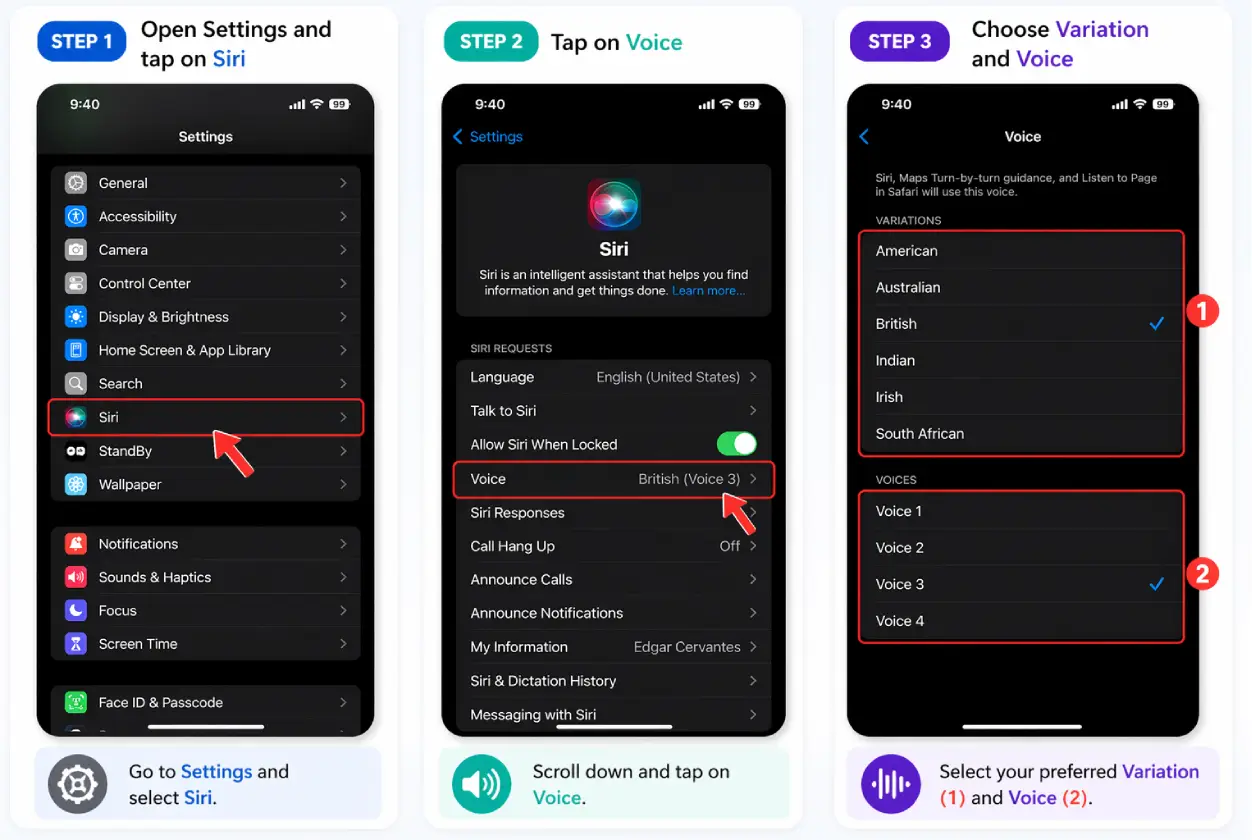
Method 2: For Some iPhones (With Accent Options)
On some devices or iOS versions, you may see additional options.
Step 1–3: Same as above
Step 4: Choose Accent
Select an accent like:
- American
- British
- Indian
- Australian
Step 5: Select Voice Type
Pick a voice style (Voice 1, Voice 2, etc.). Your iPhone may download the selected voice.
Step 6: Open Apple Maps
Start navigation to hear the new voice.
How to Change Apple Maps Voice Language
If you want directions in a different language, follow this:
- Open Settings
- Tap Siri
- Tap Language
- Select your preferred language
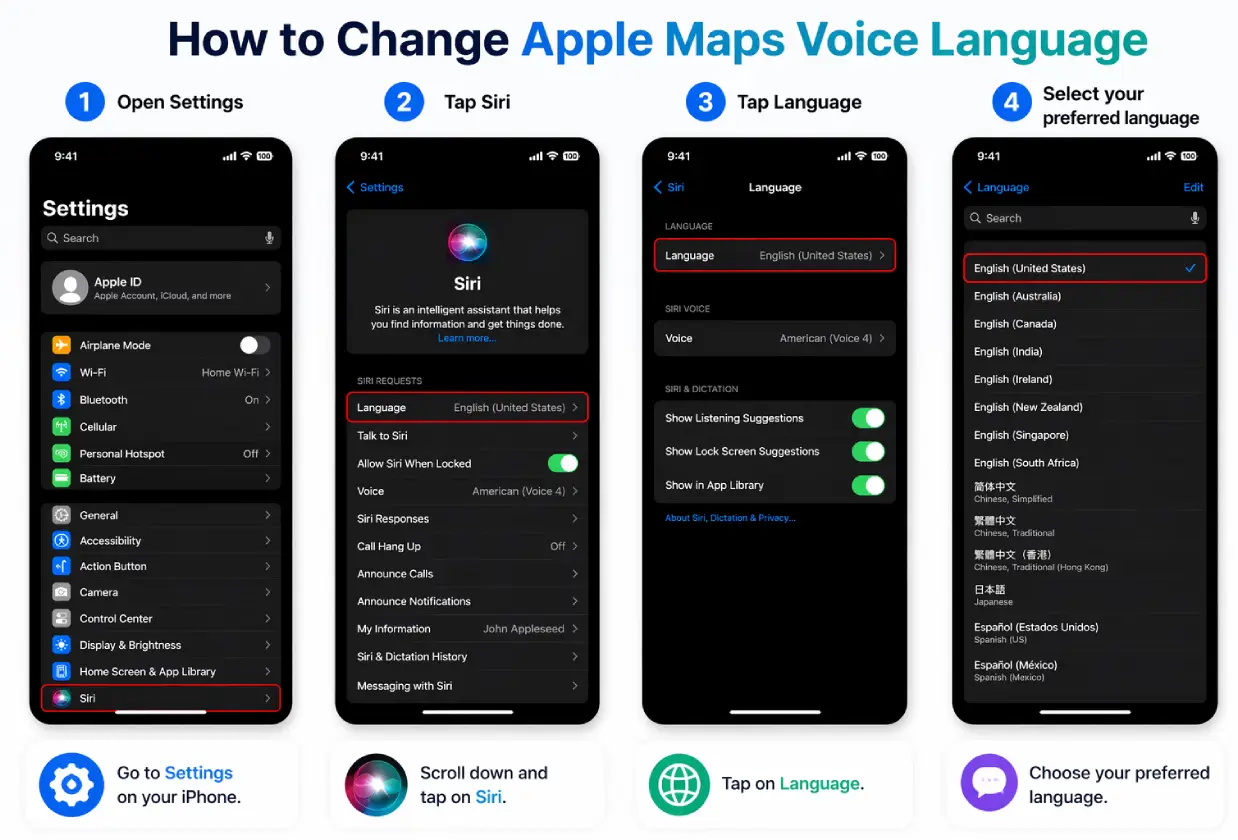
Apple Maps will now use this language for navigation.
How to Adjust Apple Maps Voice Volume
Sometimes, it’s not really the voice that’s bothering you – it’s the volume. Even a good voice can feel annoying or useless if it’s too low to hear or too loud while you’re driving. So before changing the voice, it’s a good idea to check the volume settings, because that alone can completely fix the experience.
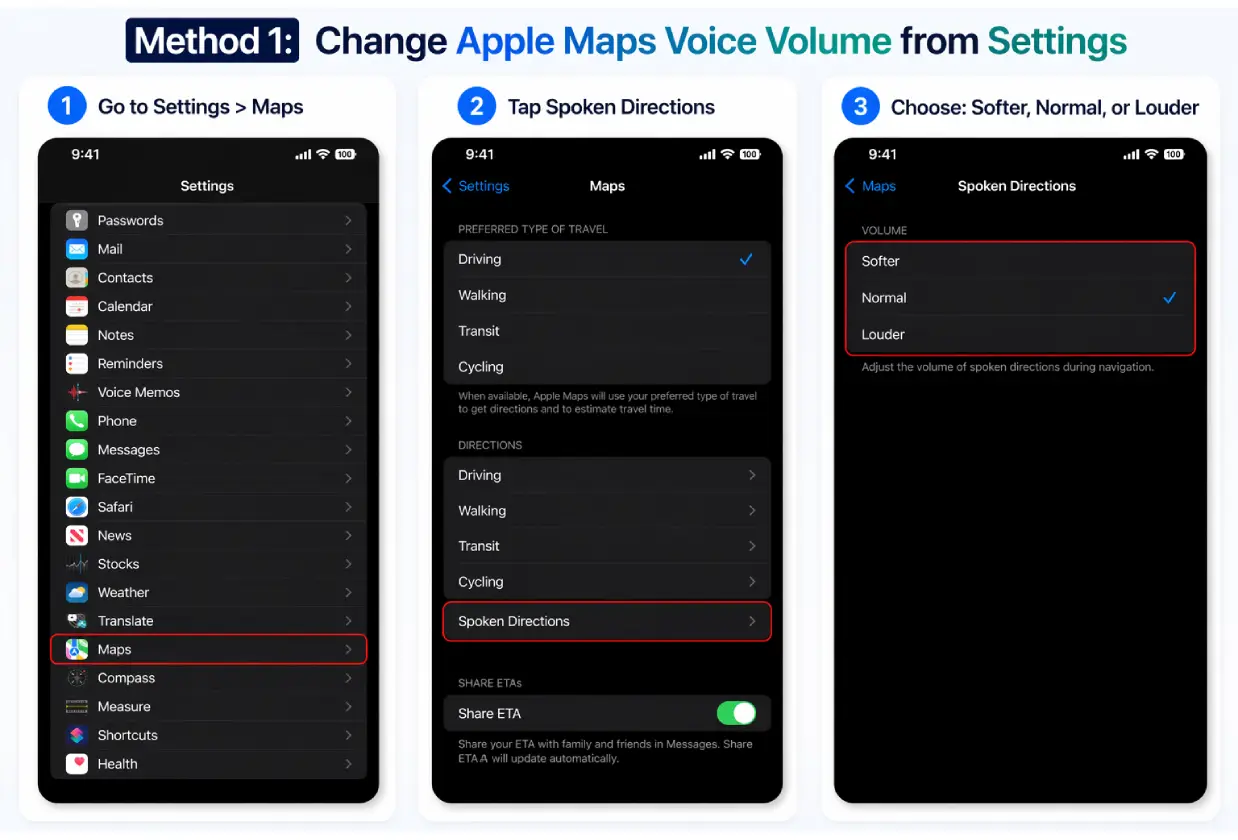
Method 1: From Settings
- Go to Settings > Maps
- Tap Spoken Directions
- Choose:
- Softer
- Normal
- Louder
Method 2: While Navigating
- Start navigation in Apple Maps
- Tap the audio/speaker icon
- Adjust volume settings
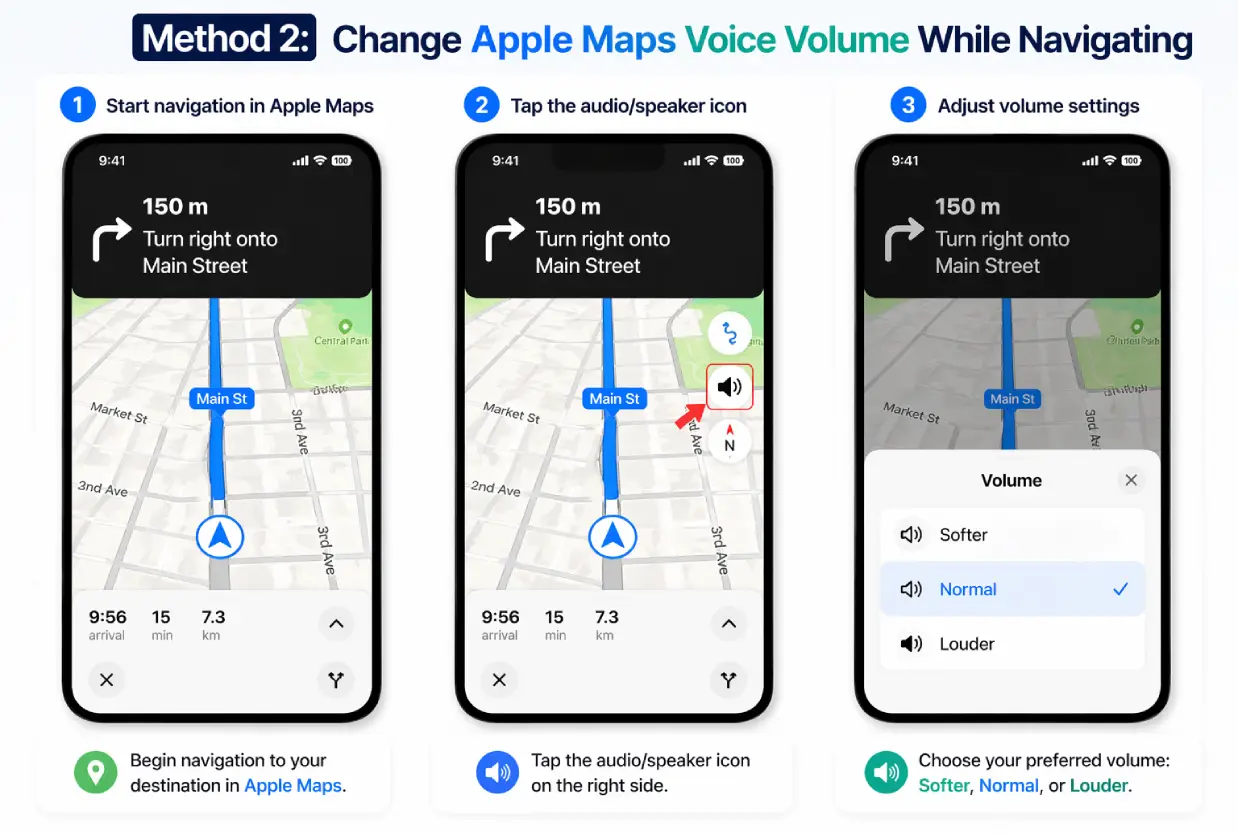
You can also mute directions or keep only alerts.
Can You Turn Off Apple Maps Voice?
Yes, you can easily do that. While you’re using Apple Maps for navigation, look at the screen – you’ll see a small speaker icon (🔊) on the map interface, usually on the right side.
Tap on this icon to control how voice directions work. Once you tap it, you’ll see three options:
- All Directions – You’ll hear full turn-by-turn voice instructions for every step.
- Alerts Only – You’ll only hear important updates, like upcoming turns or traffic alerts.
- No Voice – This completely mutes voice directions, so you’ll only see directions on the screen.
This is helpful if you want fewer distractions or prefer a quieter navigation experience.
Read Also – How to Turn Off Voicemail on iPhone
Why Apple Maps Voice Doesn’t Change Sometimes
If the voice doesn’t update, here are common reasons:
- Voice file not downloaded properly
- Siri settings not updated
- App not restarted
Quick fix:
- Restart your iPhone
- Reopen Apple Maps
Pro Tips for a Better Experience
- Choose a clear accent you understand easily
- Keep volume at Normal or Loud while driving
- Use Alerts only if you don’t want constant talking
Final Thoughts
Changing the Apple Maps voice is simple once you understand that it depends on Siri. By updating Siri’s voice, language, or volume, you automatically customize your navigation experience.
Now that you know how to change Apple Maps voice and volume, you can make your directions more comfortable, clear, and personalized.
Try different voices and pick the one that works best for you.
Read Also – How to Share Location on iPhone
