


Have you ever wondered what happens the moment you press the power button and how your computer knows where to begin? Most individuals utilize their computers daily and have no idea about the little process that occurs right before the operating system loads on the screen.
One of the key elements in this startup process is called the BIOS boot order. If you are wondering what is BIOS boot order is, it helps the computer determine what storage medium should be checked first in search of an operating system. Having knowledge about this process will help you to install, troubleshoot, and secure your system.
The Boot Order Process
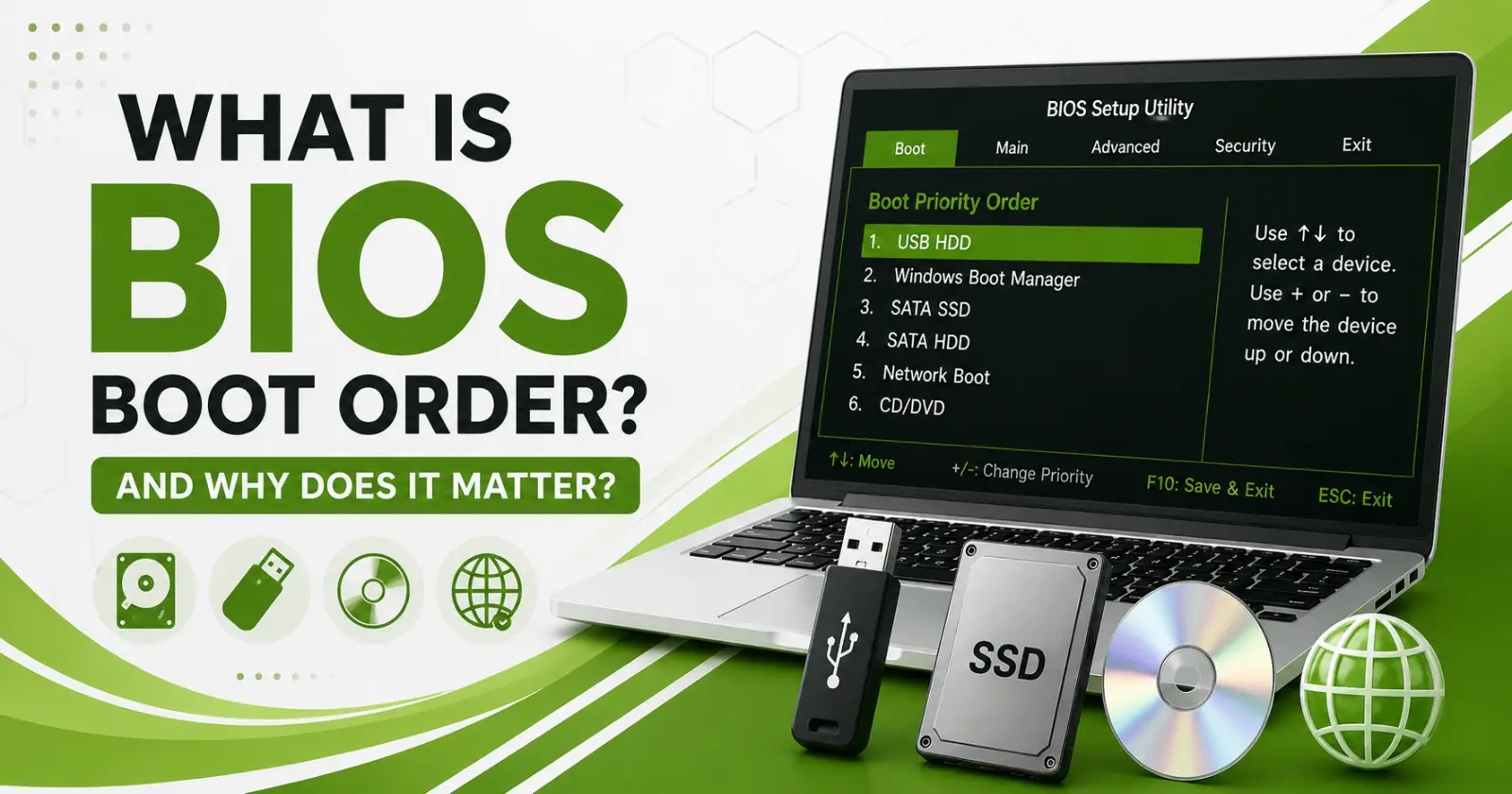
Boot order refers to the sequence through which your computer will check for booting devices during startup. The boot device may be any combination of either an internal hard drive, a solid-state drive, a USB, a DVD, or a network device.
During startup, the BIOS or UEFI will perform a power-on self-test to check that all the required hardware is in place, after which it will use the boot order to search for a drive with a properly formatted operating system.
How Bios Uses The Boot Order
BIOS strictly adheres to the boot order of devices as configured. It proceeds with testing each device in the boot order, one at a time, until it is able to boot from a device that can start the OS.
In case the first device in the boot order does not have the required bootable files, then the BIOS immediately jumps to the next device in the list.
Why The Boot Order Is Important
Many daily computer tasks depend on the correct boot sequence. A properly configured startup order helps the system work as expected during different situations.
Some common reasons are
- Installing a new operating system from a USB drive
- Starting recovery tools after system problems
- Running diagnostic software from external storage
- Booting a live operating system without changing internal files
- Accessing network-based startup environments in business settings
Each of these tasks requires the computer to check the correct device before attempting to load the installed operating system.
Read Also – 10 Ways To Get Quickly Help In Windows
Installing A New Operating System
Installing Windows or Linux usually begins with a bootable USB drive. The computer must recognize this drive before checking the internal storage that already contains the existing operating system.
Without changing the startup sequence, the computer continues loading the current operating system instead of launching the installation files. This makes the correct boot order an important step before beginning the installation process.
Some useful points to keep in mind are
- Place the USB drive at the top of the boot list before starting the installer.
- Confirm that the installation media is created correctly and marked as bootable.
- Remove other external drives that may confuse the startup process.
- Save the BIOS changes before restarting the computer
- Return the original boot order after the installation finishes.
Supporting System Recovery
System recovery becomes much easier when external recovery tools can start before the damaged operating system. Recovery drives contain utilities that help repair startup files, restore backups, or scan the system for problems.
Knowing what is BIOS boot order is allows users to start these recovery tools whenever the installed operating system cannot load normally. This simple adjustment often becomes an essential part of troubleshooting.
Supporting System Recovery
Some operating systems can run directly from a USB drive without making changes to the internal storage. These versions are often called live operating systems.
This enables one to test another operating system, restore essential files, or conduct maintenance work without disrupting the current setup. The proper boot order ensures that one is able to do so by choosing the external hard drive first.
Read Also – How to Screenshot on Windows Using Snipping Tool
Using Network Boot In Business Environments
Many organizations use network booting to manage large groups of computers from a central location. Instead of loading files from local storage, computers receive startup files through the company network.
This method helps information technology teams install operating systems, perform updates, and maintain multiple devices more efficiently. The required network option must appear at the appropriate position in the boot order.
Improving Computer Security
Boot order settings contribute to system security in several situations. Keeping the internal drives as the primary startup device reduces the chance of someone loading an unauthorized operating system from external media.
Extra protection becomes possible when a BIOS password is enabled. This prevents unauthorized users from changing the boot sequence without permission.
Some useful security practices include
- Keep the internal storage device as the first boot option.
- Enable a BIOS password whenever appropriate
- Allow changes only when maintenance is required
- Return the original boot sequence after completing repairs.
How To Change The Boot Order
Changing the boot order is usually a straightforward process. The exact menu may look different depending on the computer manufacturer, though the general steps remain very similar.
Follow these basic steps
- Restart the computer
- Press the required BIOS or UEFI access key during startup, such as F2, F12, F8, or Delete.
- Open the Boot or Startup section.
- Locate the list of available boot devices
- Move the preferred device to the top of the list using the available keyboard controls.
- Save the changes and exit the BIOD, often by pressing F10.
The computer restarts using the updated startup sequence after the settings are saved.
When You Should Restore The Original Boot Order
Temporary changes are common during software installation or system repair. Once the task has been completed, restoring the original startup sequence is a good practice.
Returning the internal drive to the highest priority allows the computer to start normally during future restarts. This reduces unnecessary startup delays and helps avoid confusion if removable devices remain connected.
Final Takeaway
Having a proper idea about what is BIOS boot order enables users to control the process of computer startup. This little thing is very important when installing an operating system, recovering a system, diagnosing hardware, doing network booting, and for security purposes.
Knowing how the boot sequence works will simplify your troubleshooting procedures. Just make a few little adjustments in the BIOS setup menu, and you will have the opportunity to maintain your computer while being able to work with it normally.
