


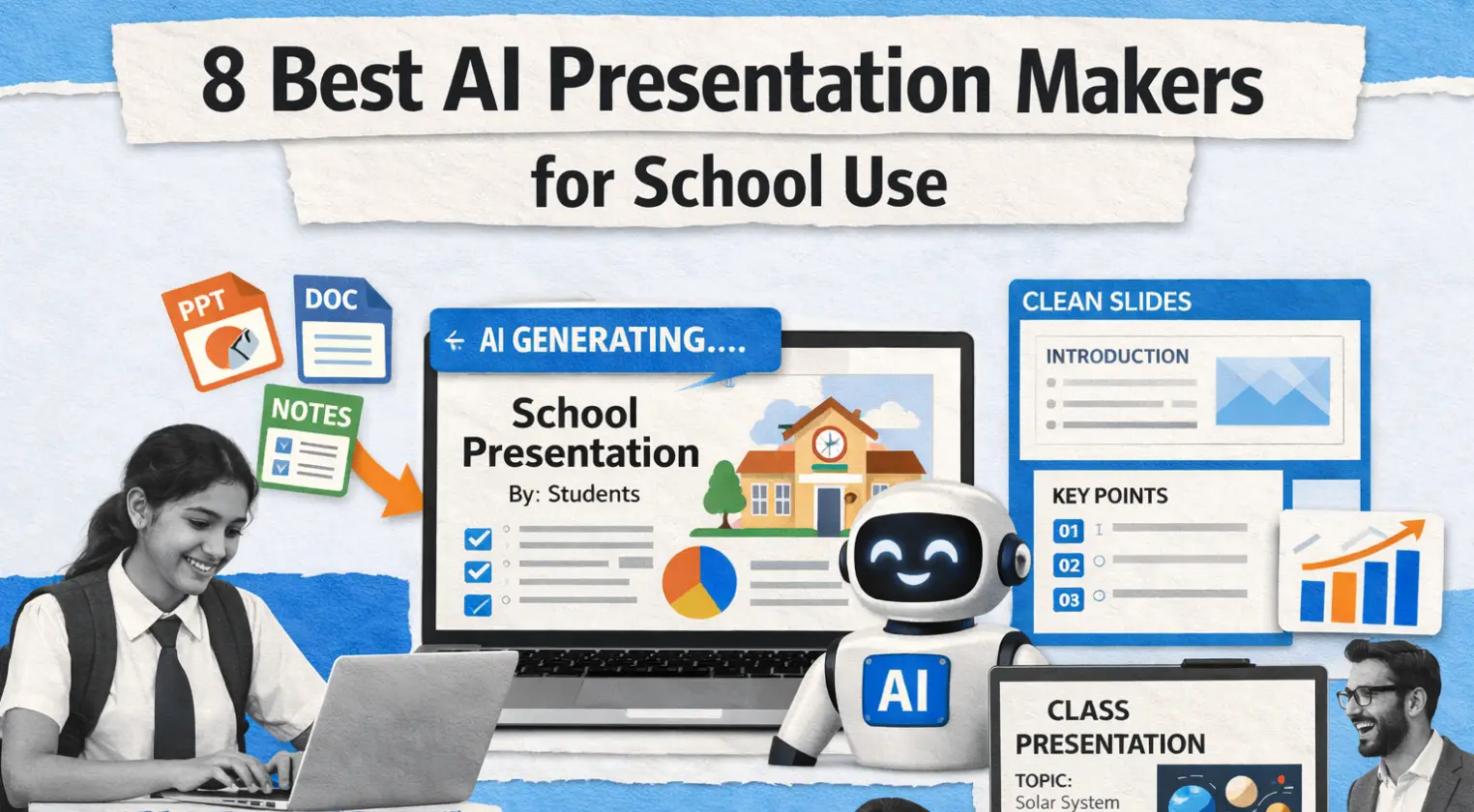
School presentations are common now. Students need them for class reports, group work, speech tasks, and final projects. Teachers also use slides for lessons, reviews, and class activities. Because of that, many people now look for tools that can help them make slides faster.
An AI presentation maker can save time, but not every tool is a good fit for school use. Some are too focused on design. Some make slides that look nice but feel too generic. Some are better for work than for class. The best tools for school should be easy to use, simple to edit, and good at turning notes into clear slides.
This guide covers eight of the best AI presentation makers for school use. It looks at what each tool does well, where it fits best, and what kind of student or teacher may find it most useful.
What Makes a Good AI Presentation Maker for School?
Before choosing a tool, it helps to think about what students and teachers actually need.
For school use, the best AI slides generator should do a few simple things well. First, it should be easy to use. Most students do not want a long setup process. They want to type in a topic, upload notes, or paste content and get a usable draft quickly.
Second, the tool should create a clear structure. A school presentation usually needs an introduction, key points, examples, and a conclusion. If the AI makes messy or random slides, students still have to fix the whole deck by hand.
Third, it should allow easy editing. Students often need to adjust wording, add facts, or match teacher instructions. Teachers may also want to rewrite parts or add class examples.
Finally, the slides should be simple and readable. In school, clear communication matters more than flashy design.
With that in mind, here are eight strong options.
1. Dokie AI
Dokie AI is a good choice for school use because it focuses on structure and practical output. Many students struggle most with how to organize their thoughts, not with how to decorate slides. Dokie helps by turning rough content into a deck with a clearer flow.
This makes it useful for class reports, group presentations, topic summaries, and even study reviews. If a student has notes, a document, or a rough outline, Dokie can help shape that material into slides faster.
One thing that makes Dokie stand out is that it supports different input formats, such as PDF to Slides, Word to Slides, Text to Slides, Excel to Slides, JPG to Slides, PNG to Slides, HTML to Slides, and DOC to Slides. For school use, this can be very helpful. A student may already have an essay draft, a set of class notes, a worksheet, or images for a project. Instead of building everything from scratch, they can turn those materials into slides more directly.
Dokie AI is especially good for students who want a presentation that feels more organized from the start. It is also useful for teachers who need to turn lesson content or class notes into teaching slides.
Best for: class reports, group projects, lesson slides, turning notes into clear decks
Pros:
- Good structure
- Useful for turning school materials into slides
- Easy to edit
- Supports many file types
Cons:
- Still needs review for accuracy
- Less design-focused than some other tools
2. Canva
Canva is one of the most popular presentation tools for students and teachers. A big reason is that it is easy to use. It has many templates, simple drag-and-drop editing, and lots of visual elements. Students who care about design often like Canva because it helps make slides look clean without needing strong design skills.
Its AI features also make the process faster. Users can generate presentation drafts, build visuals, and edit content inside the same platform. For school use, Canva works very well for posters, creative reports, simple classroom presentations, and group projects where appearance matters.
However, Canva is usually stronger on design than on deep structure. Students may still need to think carefully about how to organize their content. That means it works best for users who already have a solid outline and want help making it look better.
Best for: creative school presentations, visual projects, group work, teacher lesson slides
Pros:
- Very easy to use
- Huge template library
- Strong visual design tools
- Great for beginners
Cons:
- Structure may need more manual work
- Can lead students to focus too much on design
3. Gamma
Gamma is popular because it is fast. Students can enter a topic and get a full presentation draft in a short time. This makes it very useful for quick class tasks, idea generation, and first drafts.
The layouts also feel modern and clean, which many students like. Gamma can be especially useful for high school or college students who need to build slides fast and want a tool that feels simple.
Still, for school use, the main issue is that the output can sometimes feel a bit broad or less structured than needed. Students may need to adjust the flow and simplify the content so it better matches class expectations.
Even so, Gamma is one of the best choices when speed matters most.
Best for: fast first drafts, student projects, quick classroom presentations
Pros:
- Very fast
- Simple workflow
- Modern layouts
- Good for brainstorming
Cons:
- May need more editing for structure
- Not always ideal for formal school reports
4. Plus AI
Plus AI is a good choice for students and teachers who already use Google Slides. Instead of learning a whole new platform, users can work inside a tool they already know. That makes it easy to adopt, especially in schools that use Google Workspace.
For school use, this is a big advantage. Students can generate and improve slides without leaving Google Slides, and teachers can share, comment, and edit with less friction. It is especially helpful for group work, where several students need to work on one deck together.
Plus AI may not feel as visually distinct as some standalone tools, but it is practical. For classroom work, that often matters more.
Best for: Google Slides users, group projects, teacher collaboration, simple class decks
Pros:
- Fits Google Slides workflow
- Easy for schools to use
- Good for teamwork
- Simple editing process
Cons:
- Less unique design style
- May feel more basic for full deck generation
5. Beautiful.ai
Beautiful.ai is a strong option for users who want slides to look polished with less manual formatting. It helps keep the layout clean and balanced, which is useful for students who want a more professional look without spending too much time adjusting design details.
For school use, Beautiful.ai works well for speech presentations, class reports, and projects where a neat layout matters. Teachers may also like it for lesson content because the slides often look clean and organized.
The main limitation is that it may be more useful when the user already knows what they want to say. It helps a lot with presentation design, but students may still need to build the core content and flow themselves.
Best for: polished school reports, speech presentations, teacher slides
Pros:
- Clean visual output
- Good design support
- Slides look organized
- Helpful for professional-looking class work
Cons:
- Less focused on content building
- May be less flexible for rough note-to-slide workflows
6. Prezi
Prezi is different from most other presentation tools because it uses a zoom-style format instead of normal slide-by-slide movement. For students, this can make presentations feel more dynamic and engaging. It works well for storytelling, topic exploration, and presentations where movement adds interest.
Prezi is a good fit for students who want to stand out or present a topic in a more visual way. It can also work well for teachers who want to make lessons feel more interactive.
Still, it is not always the best option for every school task. Some class presentations need a very simple and traditional slide format, and Prezi may feel less direct in those cases.
Best for: storytelling presentations, interactive class talks, creative lessons
Pros:
- Unique presentation style
- More engaging movement
- Good for creative topics
- Helps presentations feel dynamic
Cons:
- Less traditional
- Not always ideal for simple school reports
7. SlidesAI
SlidesAI is made for people who want a simple way to turn text into slides. This makes it useful for students who already have written notes or an outline and want to convert that material quickly into a presentation.
For school use, SlidesAI works well for book reports, topic summaries, and short classroom talks. It is easy to use and does not ask students to learn a lot before getting started. That makes it a strong option for beginners.
The main downside is that the output can sometimes feel basic, so students may need to improve the content and layout before presenting.
Best for: beginners, short reports, text-based presentations, simple class tasks
Pros:
- Easy to use
- Fast text-to-slide process
- Good for students with notes ready
- Low learning curve
Cons:
- Output may feel basic
- Often needs more polishing
8. Microsoft Copilot for PowerPoint
For students and teachers who already use PowerPoint, Microsoft Copilot can be very helpful. It works inside the familiar PowerPoint environment and supports tasks like drafting slides, rewriting content, and helping users organize ideas more quickly.
This is a strong option for school environments where PowerPoint is still the main presentation tool. Students do not need to switch platforms, and teachers can keep using a familiar setup for lesson planning and classroom materials.
Its value comes from convenience and familiarity. The main thing to keep in mind is that the quality of the output still depends on the content the user provides. Like other AI tools, it works best when paired with editing and review.
Best for: PowerPoint users, school systems already using Microsoft tools, teacher lesson decks
Pros:
- Works inside PowerPoint
- Easy for existing users
- Good for drafting and improving slides
- Fits traditional presentation workflows
Cons:
- Best if your school already uses Microsoft tools
- Output still needs review and cleanup
Which AI Presentation Maker Is Best for Students?
The best tool depends on the student’s needs.
If the student struggles most with structure and wants help turning notes or files into clear slides, Dokie AI is a good choice. If the student cares most about visual design and easy editing, Canva is one of the best options. If speed matters most, Gamma is very useful. If the class uses Google Slides, Plus AI fits naturally. If the student wants simple text-to-slide help, SlidesAI works well.
For more polished visual decks, Beautiful.ai is strong. For creative storytelling, Prezi stands out. And for schools that already live inside Microsoft tools, Copilot for PowerPoint is a practical option.
In many cases, the best choice is not the tool with the most features. It is the tool that matches how the student or teacher already works.
How Teachers Can Use These Tools
Teachers can benefit from AI presentation makers just as much as students. These tools can help them build lesson slides, summarize reading materials, create class review decks, and prepare topic introductions faster.
For example, a teacher can use Dokie AI to turn lesson notes into structured teaching slides, Canva to build visually clear class decks, or Copilot inside PowerPoint to speed up updates to old lessons. The right tool depends on whether the teacher values structure, visual design, or workflow fit.
AI tools can also help save prep time, which is important for teachers who handle many classes and subjects.
Final Thoughts
AI presentation makers can be very helpful for school use, but the best tool depends on the task. Some are better for structure, some for speed, and some for design. Students and teachers should pick a tool that helps them communicate clearly, not just make flashy slides.
For class work, the best AI presentation makers are the ones that save time while still making it easy to learn, edit, and present.
FAQs
1. What is the best AI presentation maker for school use?
There is no single best tool for everyone, but strong options include Dokie AI, Canva, Gamma, Plus AI, Beautiful.ai, Prezi, SlidesAI, and Microsoft Copilot for PowerPoint. The best choice depends on whether you care most about structure, speed, design, or workflow.
2. Which AI slides generator is best for students?
Dokie AI and Gamma are strong options for students who want fast first drafts, while Canva is great for students who want more design control. SlidesAI is also useful for simple text-based presentations.
3. Can teachers use AI presentation makers for lessons?
Yes. Teachers can use them to create lesson slides, review decks, topic summaries, and classroom materials more quickly. They are especially useful for saving prep time.
4. Are AI presentation makers good for school projects?
Yes, as long as students still review and edit the slides. AI tools are best used to create a strong first draft, not to replace learning or research.
Read Also – Save My Exams

1 Comment
I’m often to blogging and i really appreciate your content. The article has actually peaks my interest. I’m going to bookmark your web site and maintain checking for brand spanking new information.