


Have you ever tried to take a screenshot on your laptop, but it didn’t turn out the way you wanted? Maybe you captured the whole screen instead of just one part… or you couldn’t find where the screenshot got saved.
But here’s something surprising – many people don’t even know that Windows already comes with a built-in tool for taking screenshots.
Because of this, they often rely on third-party apps or software, thinking they need something extra to get the job done.
The truth is, you don’t.
Most people know how to screenshot on Windows, but very few know how to do it efficiently and professionally using the built-in Snipping Tool.
In this guide, you’ll learn smarter and easier ways to take screenshots, along with simple tricks that can instantly improve your workflow.
What is Snipping Tool?
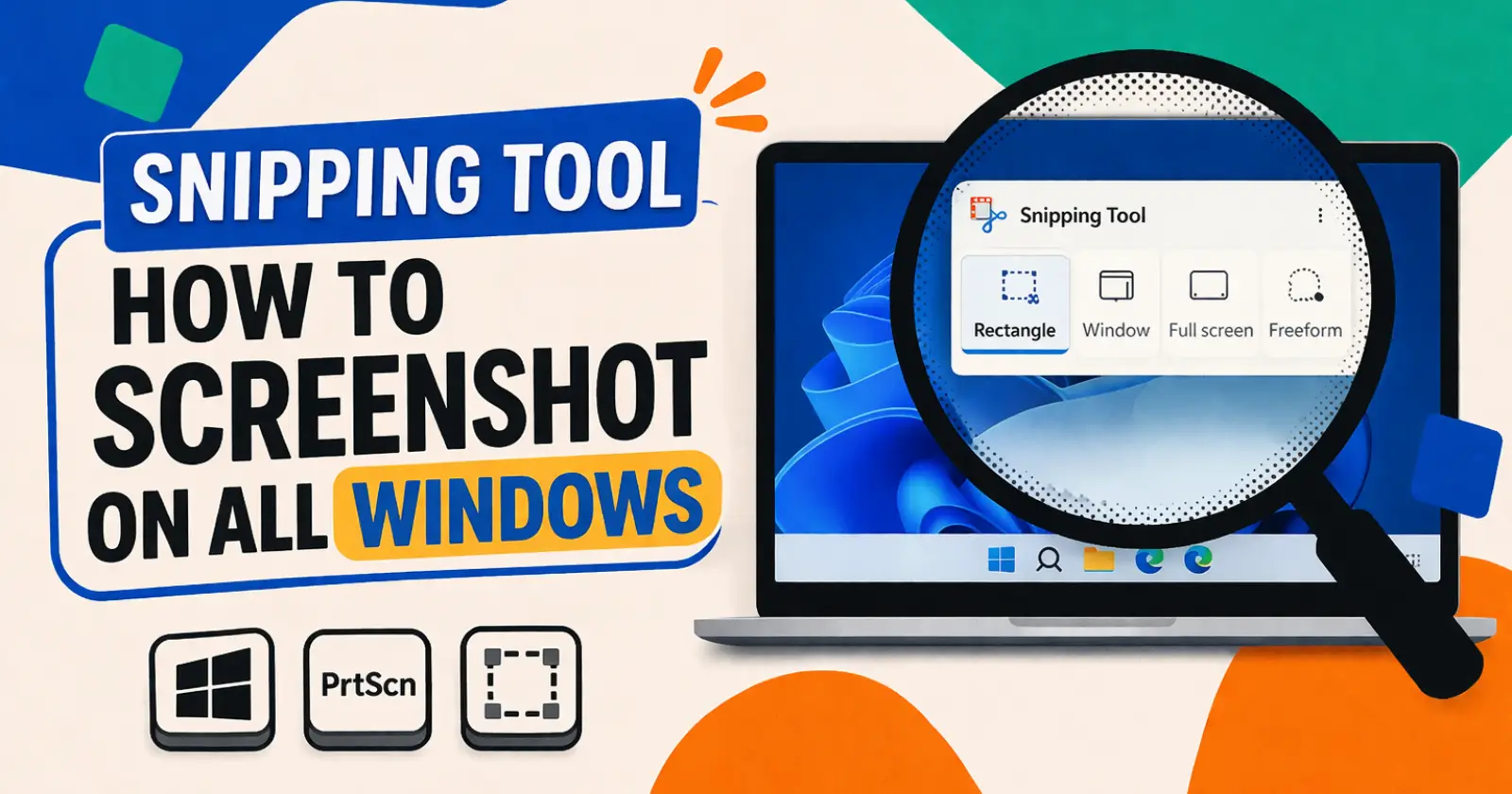
The Snipping Tool is a built-in Microsoft Windows feature that helps us to take screenshots in a more flexible and easy way.
Instead of capturing your entire screen, this tool allows us to:
- Select a specific area
- Capture a single window
- Take a full-screen shot
- Edit and annotate instantly
In simple terms, it gives you more control compared to the traditional Print Screen method.
Different Ways to Take a Screenshot on Windows
Before jumping into the Snipping Tool, let’s quickly look at all the popular ways to take screenshots on Windows.
1. Print Screen (PrtScn)
This is the most basic method.
- Press PrtScn Key
- It captures the entire screen
- Paste it into Paint, Word, or any editor using Ctrl + V
This way is best for quick, full-screen captures.
2. Windows + PrtScn
- Press Windows + PrtScn
- Your screen will dim for a second
- Screenshot automatically saves in the Pictures > Screenshots folder
Best when you want auto-save without extra steps.
3. Alt + PrtScn
- Press Alt + PrtScn
- Captures only the active window
- Paste it using Ctrl + V
This way is Useful when you don’t want background clutter.
4. Windows + Shift + S (Snipping Tool Shortcut)
This is where things get interesting.
- Press Windows + Shift + S
- The screen will dim, and a small menu will appear
- Choose the snip type and capture instantly
This is the smartest and fastest way to use the Snipping Tool. In many Windows 11 systems, you don’t even need this shortcut.
- Simply press the PrtScn (Print Screen) key
- The same snipping menu will open automatically
This happens when the “Use the Print Screen button to open screen snipping” setting is enabled.
How to Use Snipping Tool (Step-by-Step)
Now, let’s understand how to use the Snipping Tool properly.
Step 1: Open Snipping Tool
- First of all, search for “Snipping Tool” in the Windows search bar
- Click to open
Step 2: Choose Snip Mode
You’ll see different options:
- Rectangular Snip – Select a specific area
- Freeform Snip – Draw any shape
- Window Snip – Capture a specific window
- Full-screen Snip – Capture the entire screen
Most people use Rectangular Snip for better control.
Step 3: Take the Screenshot
- Click on New
- Select the area you want to capture
Step 4: Edit and Save
After capturing:
- Use pen or highlighter tools
- Crop if needed
- Click Save and choose a location
You can also copy and share it instantly.
Read Also – How to Get Help In Windows
Snipping Tool vs Snip & Sketch
You might have also heard about Snip & Sketch, but many users are still confused about what it actually does.
Let’s make it simple.
- Snipping Tool – A basic screenshot tool to capture and save images
- Snip & Sketch – An improved version that allows you to capture, edit, and share screenshots instantly
What is Snip & Sketch?
Snip & Sketch is also a built-in Windows app designed to make screenshot capturing faster and more interactive.
It not only lets you take screenshots but also gives you quick editing options like:
- Drawing or highlighting
- Cropping the image
- Adding notes or markings
In simple words, it combines screenshot + basic editing in one place.
Steps to Use Snip & Sketch
- Press Windows + Shift + S
- Choose the type of screenshot (rectangular, window, full screen)
- After capturing, click on the preview notification
- The image will open in the Snip & Sketch editor
- Edit, save, or share your screenshot
This makes the whole process faster compared to opening another app for editing.
Important Note (For Windows 11 Users)
In Windows 11, Snip & Sketch and Snipping Tool are now merged into one updated Snipping Tool.
So when you use shortcuts like Windows + Shift + S or PrtScn, you’re actually using the upgraded version of both tools.
Pro Tips to Take Better Screenshots
If you want to take screenshots like a pro and Expert user, then these tips will help you a lot:
- Clean Your Screen First – Close unnecessary tabs or clutter before capturing.
- Use Shortcuts Instead of Manual Methods – The shortcut Windows + Shift + S saves a lot of time.
- Highlight Important Areas – Use annotation tools to draw attention to key points.
- Choose the Right Format – PNG → Best quality, JPG → Smaller file size
- Crop Smartly – Don’t include extra space – keep your screenshot focused.
Common Mistakes to Avoid
Even simple tasks can go wrong if you’re not careful.
- Taking Full Screen When Not Needed – Always choose the right snip type.
- Forgetting to Save – Many users copy screenshots but forget to save them.
- Low-Quality Screenshots – Avoid resizing too much – it reduces clarity.
- Overusing Annotations – Too many highlights can make your screenshot confusing.
Alternatives to Snipping Tool (Third-Party Options)
While the built-in Snipping Tool is more than enough for most users, you can also use third-party apps if you need more advanced features. Many people prefer these tools for faster workflow and extra functionality.
Here are some popular alternatives to Snipping Tool:
Why Use Third-Party Screenshot Tools?
These tools offer some additional benefits, such as:
- Faster sharing options
- Cloud upload support
- Advanced editing features
- Custom shortcuts and quick access
This can be helpful if you take screenshots frequently for work or content creation.
Should You Use Them?
If your needs are basic, the built-in Snipping Tool works perfectly fine. However, if you want more control, speed, and extra features, you can definitely try these alternatives.
Bottom Line
Taking screenshots on Windows is easy, but taking them smartly makes a big difference. Now you understand the different ways to take a screenshot, how to use the Snipping Tool step-by-step, and the pro tips that can help you improve your screenshots.
Start using these methods today, and you’ll instantly notice the difference in your workflow. Now it’s your turn -try the shortcut Windows + Shift + S and take your first pro-level screenshot.
Read Also – How to Screenshot on Chromebook
