


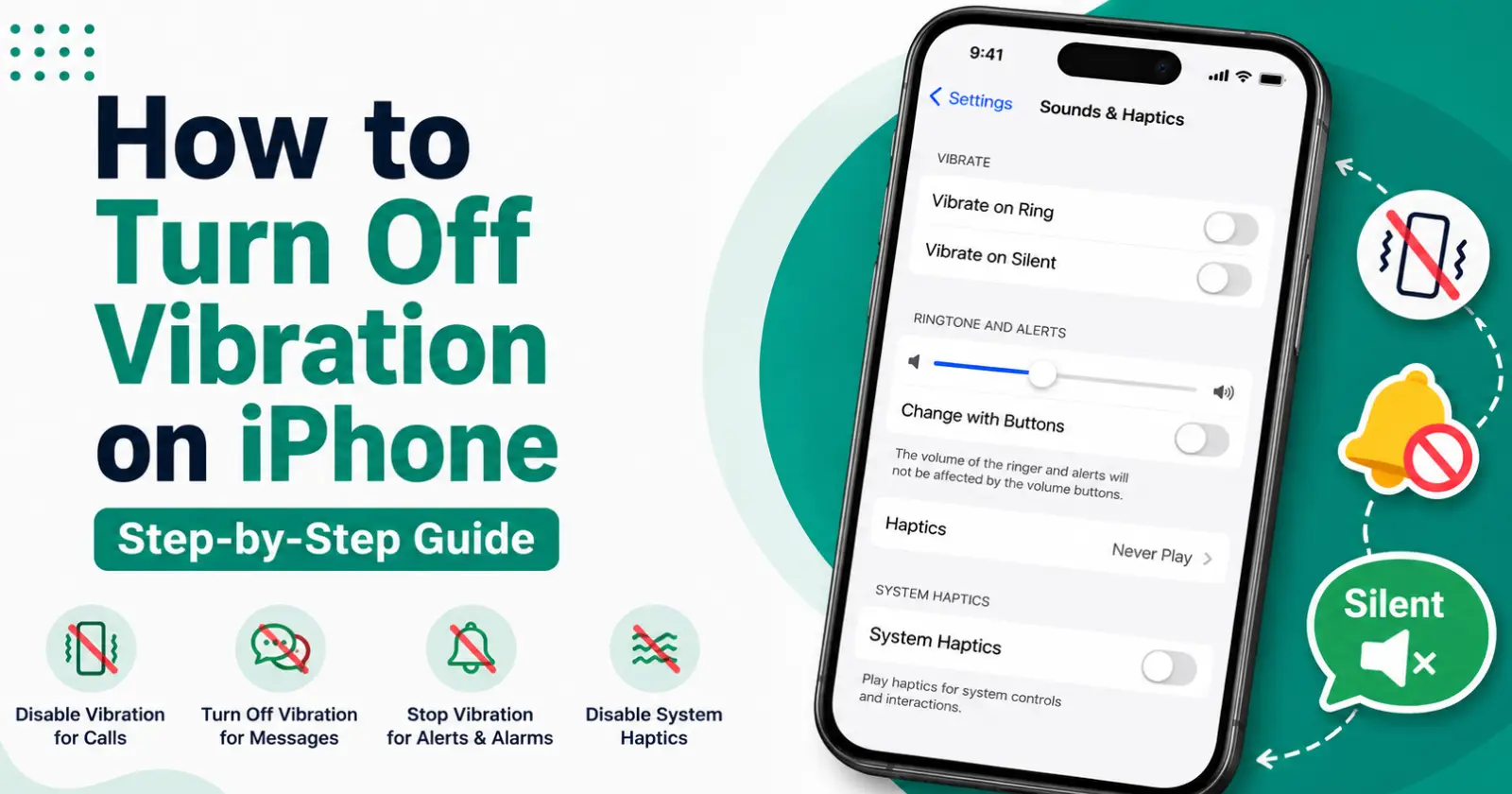
Are you an iPhone user? Then, you must have experienced the constant vibration of the phone whenever you get a call, message, or app notification. Though it seems like a safe place to avoid distraction in meetings, the continuous vibration of the phone turns the day into madness.
However, the Apple design allows users to customize or disable the vibration setting for different alerts. If you are looking to turn it into silent mode or wonder how to turn off vibration on an iPhone, this blog will help you. Let’s dive into the blog to explore simple step-by-step guidance on turning off vibration on iPhone.
Step-by-Step Guidance on Turning Off the Vibration Mode on iPhone
An Apple phone comes with various options to control the vibration or completely turn it off into silent mode for a better workflow. The users can check the sounds and haptics or accessibility menus in settings to customize the quiet mood. Here are the various methods and simple guidance for users to turn off the vibration in the iPhone.
Method 1 – Turn Off All Vibrations
For those who wonder how to turn off vibrations on an iPhone, this method can help them. It helps to turn off all the alerts and notifications.
- Open the Settings app on your iPhone.
- Go to the Accessibility tab.
- Open touch in the Physical and Motor section
- Search for the Vibration setting and turn it off.
From normal messages to government alerts, it turns everything into a notification into mute. So be sure to check often to avoid emergency notifications.
Method 2 – Turn Off Vibration For Calls And Messages
When you want sounds and visual alerts without buzzing, you can adjust the vibration options in the sounds and haptics settings. Here they are.
- Open the “Settings”
- Tap “Sound and Haptics.”
- Scroll for Vibration or Play Haptics sections to turn off
For the old iOS version, look at the vibration on ring and vibration on silent, and turn them off. The newest iPhone comes with the play haptics in ring mode and play haptics in silent mode options. Choose silent mode to turn off the call and message notifications.
Method 3 – Turn Off Haptics For System Feedback
Sometimes, the app and system feedback notifications may keep distracting you from work. Instead of feeling frustrated and confused about how to turn off the vibration in your iPhone, you can do
- Go to Settings and look for Sound and Haptics options
- Below the section, you may find System Haptics
- Set the Haptics to turn off vibration.
After turning off the vibration, you may never even feel those tiny taps when toggling or switching it when placing it on the charger.
Read Also – How to Check iPhone is Original
Method 4 – Turn Off Vibration For Specific Alerts
Sometimes, the users may want to turn off vibration for specific alerts. For that, iOS lets users assign “None” as the vibration pattern for alert types.
Follow the steps for easy turn-off of vibration mode –
➤ For Calls
- Go to Settings
- Open Sound and Haptics -> Ringtone
- Tap “Vibration” on top and select “None” to disable vibration for calls
➤ For Text Message
- Open Settings and go to the Sound and Haptics section.
- Choose the text zone, mail, and reminder in it, and scroll down for the vibration option.
- Set it to none to disable vibration and turn any message alerts into silent mode.
➤ For Alarm Mail
- Open the Clock app on your iPhone
- Go to the Alarm tab and click Edit
- On that, select an alarm sound from vibration to none. It helps to turn off the vibration for alarms.
Final Takeaway
Though turning off the vibration in the iPhone seems like an easy task, without the proper guidance, users are stuck with the constant phone-buzzing nightmare. Follow the steps properly to disable specific alerts on the mobile device. You can even disable all the notifications and call into a silent mode with a single tap on Accessibility. However, be sure to check your mobile often to avoid missing emergency calls and reminders.
Read Also – How To Send Voice Message On iPhone
