


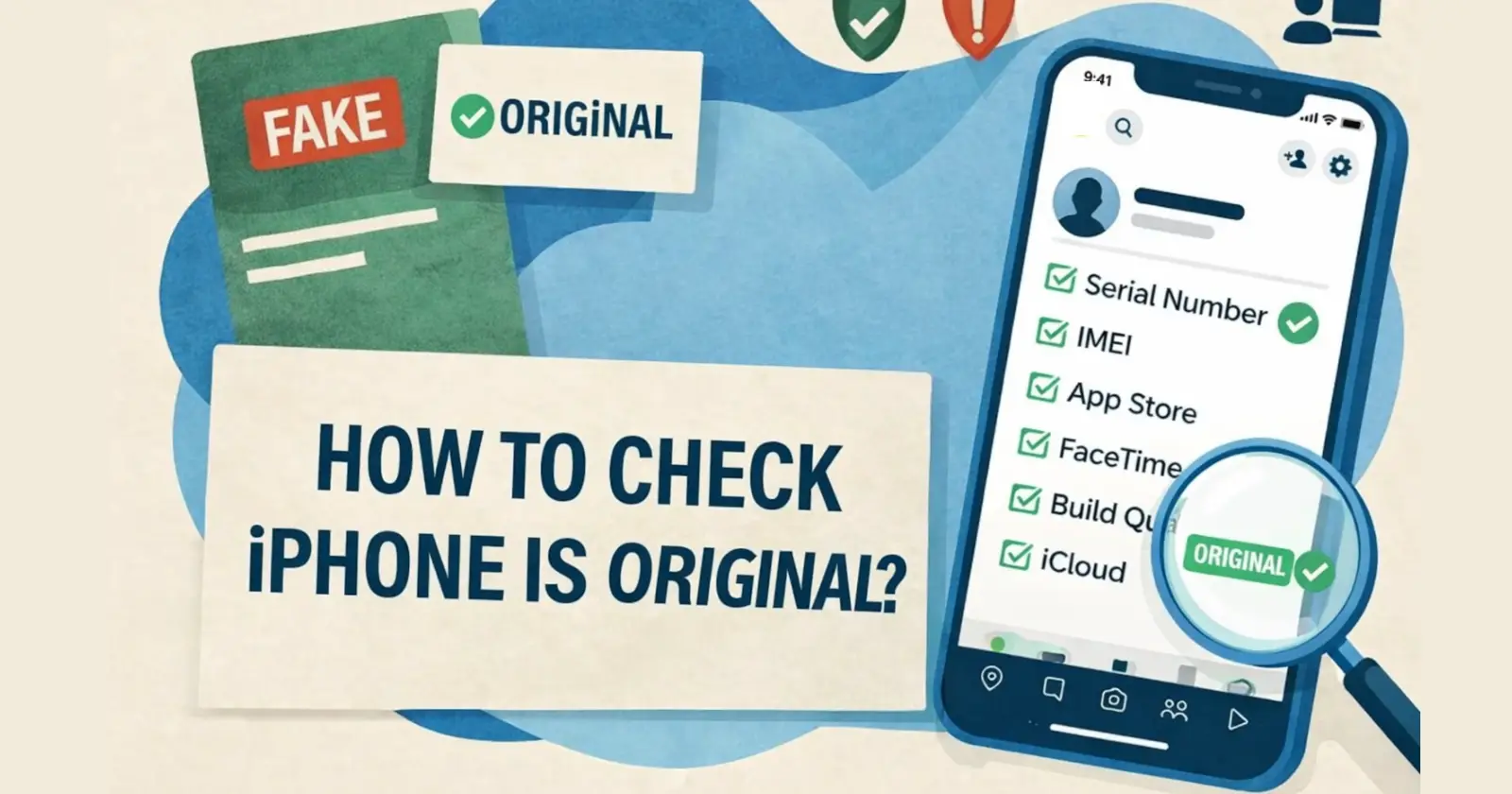
Buying an iPhone is a big investment. But here’s the problem – fake iPhones are becoming very common, and some of them look almost the same as the real ones.
So, how do you check if your iPhone is original or not? The short answer is – You can verify it using the serial number, IMEI number, software features, and physical quality.
In this complete guide, you’ll learn simple and practical ways to check whether your iPhone is real or fake.
So let’s see –
What Makes an iPhone Original?
An original iPhone is made by Apple and runs on real iOS software system, with full access to Apple services and apps like App Store, iCloud, and FaceTime.
On the other hand, fake iPhones usually have several clear differences once you start using them. Most fake devices do not run a real iOS software system. Instead, they use a modified version of the Android system that is designed to look exactly like Apple’s interface. At first glance, it may seem similar, but the experience feels different. For example, you might notice the presence of the Google Play Store instead of the App Store, a slightly different settings layout, or missing system features.
In addition, fake iPhones often come with poor build quality. You may feel their loose buttons, uneven screen edges, or a lightweight plastic body instead of the solid glass and metal design that real iPhones have.
Another major sign is the absence of important Apple features. Services like FaceTime, iMessage, Siri, and iCloud either do not work properly or fail to activate at all. Since these features depend on Apple’s official ecosystem, their absence is a strong indicator that the device is not genuine.
1. Check Serial Number (Most Important Step)
This is the most reliable and accurate way to verify whether your iPhone is original. The serial number is a unique code assigned to every iPhone, which helps you check its authenticity directly on Apple’s official database.
How to check:
- Go to Settings → General → About
- Find the Serial Number
- Visit Apple’s official Check Coverage page
- Enter the serial number
If Apple shows device details → Your iPhone is original, If no data appears → It may be fake
Tip: Every real iPhone has a unique serial number registered in Apple’s system.
2. Verify IMEI Number
Another simple way to verify your iPhone is by checking its IMEI number. This is a unique 15-digit code given to every mobile device, and it helps you confirm whether the device is original or not.
Steps to Verify:
- Dial *#06# to get IMEI
- Match it with the box: Make sure the IMEI number matches the one printed on the back of the original iPhone box.
- Check the SIM tray (if available): In some iPhone models, the IMEI number is also mentioned on the SIM tray, so you can verify it from there as well.
- Verify it online: Enter the IMEI number on Apple’s official website or a trusted IMEI checker to confirm your device details.
If details match → Good sign
If mismatch → Red flag 🚨
3. Check iOS & Apple Features
Now, let’s move on to the third method, where fake iPhones usually fail to keep up. This is where fake phones fail badly.
Test these features on your device:
- App Store (not Google Play)
- FaceTime & iMessage
- Siri voice assistant
- iCloud login
Fake iPhones often:
- Lag
- Miss Apple apps
- Use fake UI instead of real iOS
4. Inspect Build Quality (Fake vs Real)
Now, let’s move on to the fourth method. Apple is known for its premium design and precise build quality, so this is where you can easily spot the difference between a real and a fake iPhone.
Check carefully:
- Body material (glass + metal feel)
- Buttons (firm & aligned)
- Ports & speaker grills
- Camera quality
Fake iPhones usually have these common issues:
- Loose buttons
- Rough edges
- Poor finishing
5. Check Box & Accessories
Now, let’s move on to the next method. The packaging can reveal a lot about whether your iPhone is original or not, so it’s worth taking a closer look.
Look for:
- Sharp printing (no blur)
- Proper Apple logo & font
- Clean packaging
Fake signs:
- Spelling mistakes
- Cheap accessories
- Poor-quality box
6. Test Performance & Features
Now, let’s move on to the sixth method. Even if the iPhone looks completely real from the outside, its performance can reveal the truth.
Try this:
- Open apps (Safari, Camera)
- Take photos
- Check touch response
Real iPhone signs:
- Smooth & fast and clear photos
Fake iPhone:
- Laggy & inconsistent and low quality photos
7. Connect to Computer (Advanced Check)
Now, let’s move on to the seventh method. Connecting your iPhone to a computer can help you confirm whether the device is genuine or not.
- On Mac (using Finder): Connect your iPhone to a Mac using a USB cable. Then open Finder and look for your device in the sidebar. If it appears instantly and shows details like storage, backup options, and device info, it’s a good sign that your iPhone is original.
- On Windows (using iTunes): Connect your iPhone to a Windows PC and open iTunes. If your device is detected properly and you can access its information, sync data, or take backups, it means the device is genuine.
- Real iPhone behavior: A genuine iPhone gets recognized quickly and works smoothly with Finder or iTunes without any issues.
- Fake iPhone behavior: A fake device may not connect properly, may not be detected at all, or might show limited or incorrect information.
Common Signs of a Fake iPhone
Watch out for these red flags:
- Very low price
- No App Store
- Poor camera quality
- Laggy performance
- Serial number not verified
Pro Tip: Don’t Rely on One Method
Some fake devices can copy serial numbers, so always use multiple checks together for accuracy.
Bottom Line
Checking whether your iPhone is original is not difficult – you just need to follow the right steps. Start with the serial number and IMEI, then verify the software, build quality, and performance.
If everything matches, your iPhone is genuine, otherwise you notice multiple issues, it’s better to avoid or return the device.
In short, always buy from trusted sellers and double-check before making a purchase. If possible, try using a real iPhone beforehand – either from a friend or someone you know – so you can easily spot the difference.
Read Also –
1- How to Turn Off Voicemail on iPhone
2- iPhone 15 Plus Battery mAh
3- How to Force Restart iPhone

1 Comment
Pingback: How to Use Apple Shortcuts - Beginner's Step-by-Step Guide