


Many users download multiple apps on their iPhones and eventually stop opening several of them after a certain period. Unwanted apps can occupy storage space, make the display appear messy, and cause trouble while locating important applications during everyday usage.
Learning how to delete apps on iPhone helps maintain a smoother device and makes phone management much simpler. The process is easy to understand and does not need technical knowledge or difficult iPhone settings to complete.
Delete Apps Directly From The Home Screen
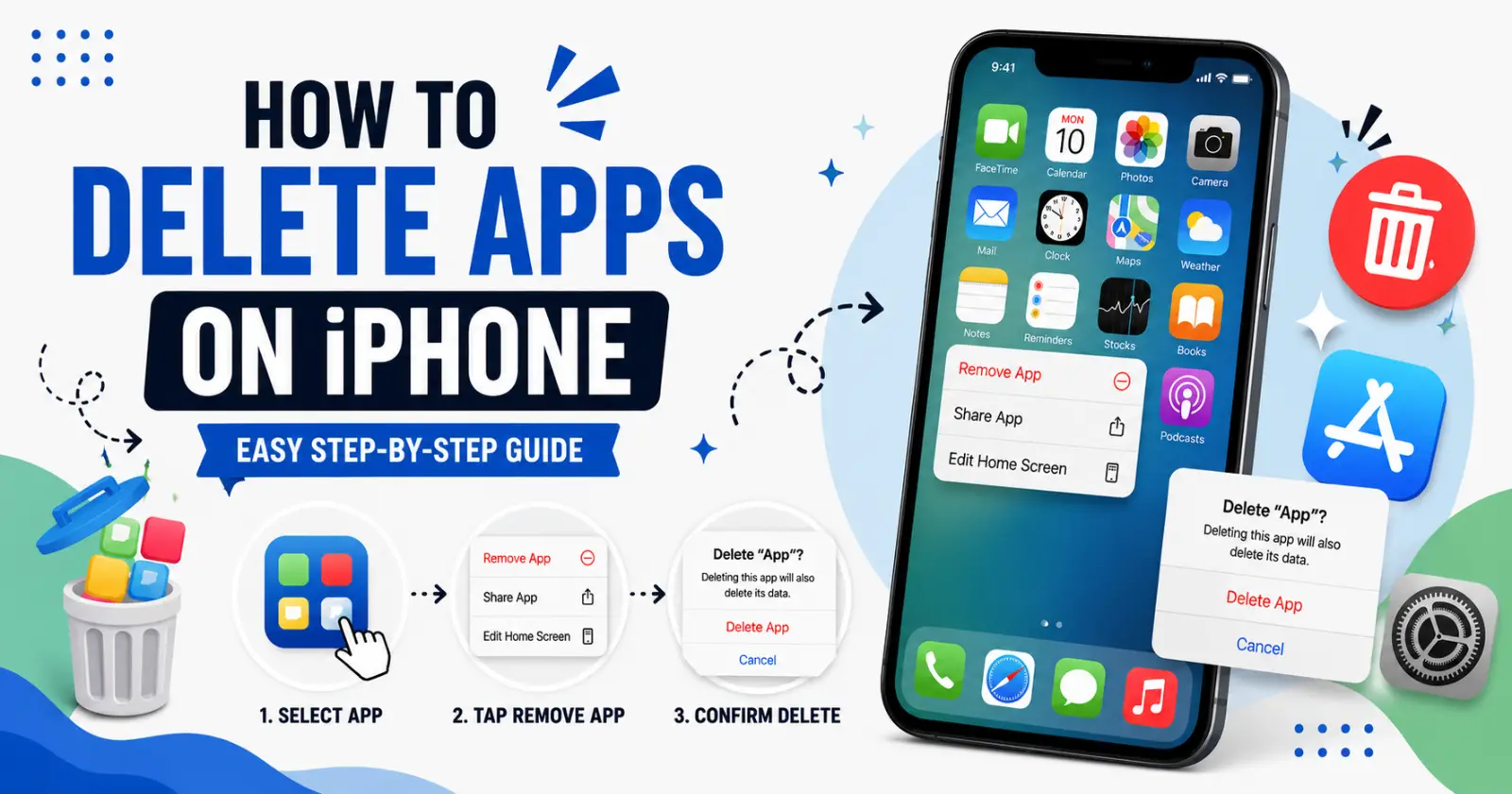
The home screen offers the fastest way to remove unwanted apps from your iPhone. You only need to press and hold the app icon for a few seconds until a small menu appears on the screen. Follow these quick steps carefully.
- Find the app you want to remove
- Press and hold the app icon
- Tap the Remove App option
- Select Delete App from the menu
- Confirm the deletion when prompted
Use The App Library For Hidden Applications
Some applications might not be visible on the main screen due to their placement in folders or being hidden. The App Library helps users locate such applications via its organized interface and search feature.
Swipe left through all the Home Screen pages to reveal the APP Library. Enter the application name in the search field. Hold down the icon and then tap the delete button. This method saves time when looking through several folders during normal daily phone use.
Remove Apps Through iPhone Storage Settings
The Settings application enables you to take an advanced approach to handling applications installed on your device. Such an option comes in handy when you need to check the storage used by your app before removing it. Use the following path inside your iPhone Settings.
- Open Setting
- Tap General
- Select iPhone Storage
- Choose the app you want to remove
- Tap Delete App
These simple steps clearly show how to delete apps on iPhone in a simple way.
Read Also – How to Delete Stickers on iPhone
Difference Between Delete And Offload
Learning the differences between deleting and offloading apps helps users manage iPhone storage more efficiently without unnecessarily removing important files.
Here is a table explaining deleting and offloading apps:
| Feature | Delete App | Offload |
| What Happens | Remove the app completely from the iPhone | Removes only the app while keeping related data |
| App Data | All app data gets deleted permanently | App documents and settings remain saved |
| Storage Saving | Frees more storage space | Frees more storage space |
| Reinstall Process | Requires a fresh installation and setup | Restores previous data after reinstalling |
| Best Used For | Apps you no longer need | Apps used occasionally |
| User Benefit | Helps clear unnecessary clutter | Helps save storage without losing files |
Cancel App Subscriptions Before Removing Apps
Deleting the application from the iPhone does not terminate the subscription associated with the Apple ID by default. A lot of users remove applications like entertainment, photo editing, or gaming without being aware of the fact that payment exists even after the application is deleted.
Before deleting any such application, it is always good to check your Apple ID subscription section thoroughly. Important reminders include.
- Review the active subscription first
- Cancel unnecessary plans manually
- Confirm cancellation status before deleting the app
This simple habit helps avoid payment-related confusion later.
To Sum Up
Keeping unused applications on your device can quietly consume storage space and make everyday phone usage feel less organized. Simple app management habits help improve performance and create a cleaner viewing experience while navigating through different screens and folders.
Understanding how to delete apps on iPhone helps users manage storage space, app subscriptions, and phone organization more effectively. Users can remove applications from the Home Screen, App Library, or iPhone settings without difficulty. The entire process is fast, secure, and simple for everyday iPhone users to handle regularly.
Read Also –
1- How to Turn Off Voicemail on iPhone
2- How to Change Apple Maps Voice and Volume
