


Let’s be honest – stickers on iPhone are fun at first. But after a while, they start cluttering your keyboard and Messages app.
You open your chat, and boom… dozens of random stickers you don’t even remember saving. Annoying, right?
The good news? Deleting stickers on iPhone is actually pretty simple – you just need to know where to look.
In this guide, I’ll walk you through every possible way to delete stickers on iPhone, whether they’re custom, downloaded, or stuck on messages.
Why You Might Want to Delete Stickers on iPhone
Before jumping into steps, here’s the thing…
Not all stickers behave the same way. Some come from photos, some from apps, and others from Messages. That’s why removal methods can feel confusing.
Here are common reasons people delete them:
- Too many stickers are cluttering the keyboard
- Irrelevant or old stickers
- Privacy concerns (personal photo stickers)
- Cleaner messaging experience
Method 1: Delete Stickers from Messages App
If you’ve ever saved or used stickers on your iPhone, there’s a good chance your sticker drawer is a bit cluttered. Here’s how you can remove the ones you no longer need:
Steps:
- Open the Messages app
- Open any conversation
- Tap the “+” icon
- Go to Stickers
- Find the sticker you want
- Long-press it
- Tap Delete
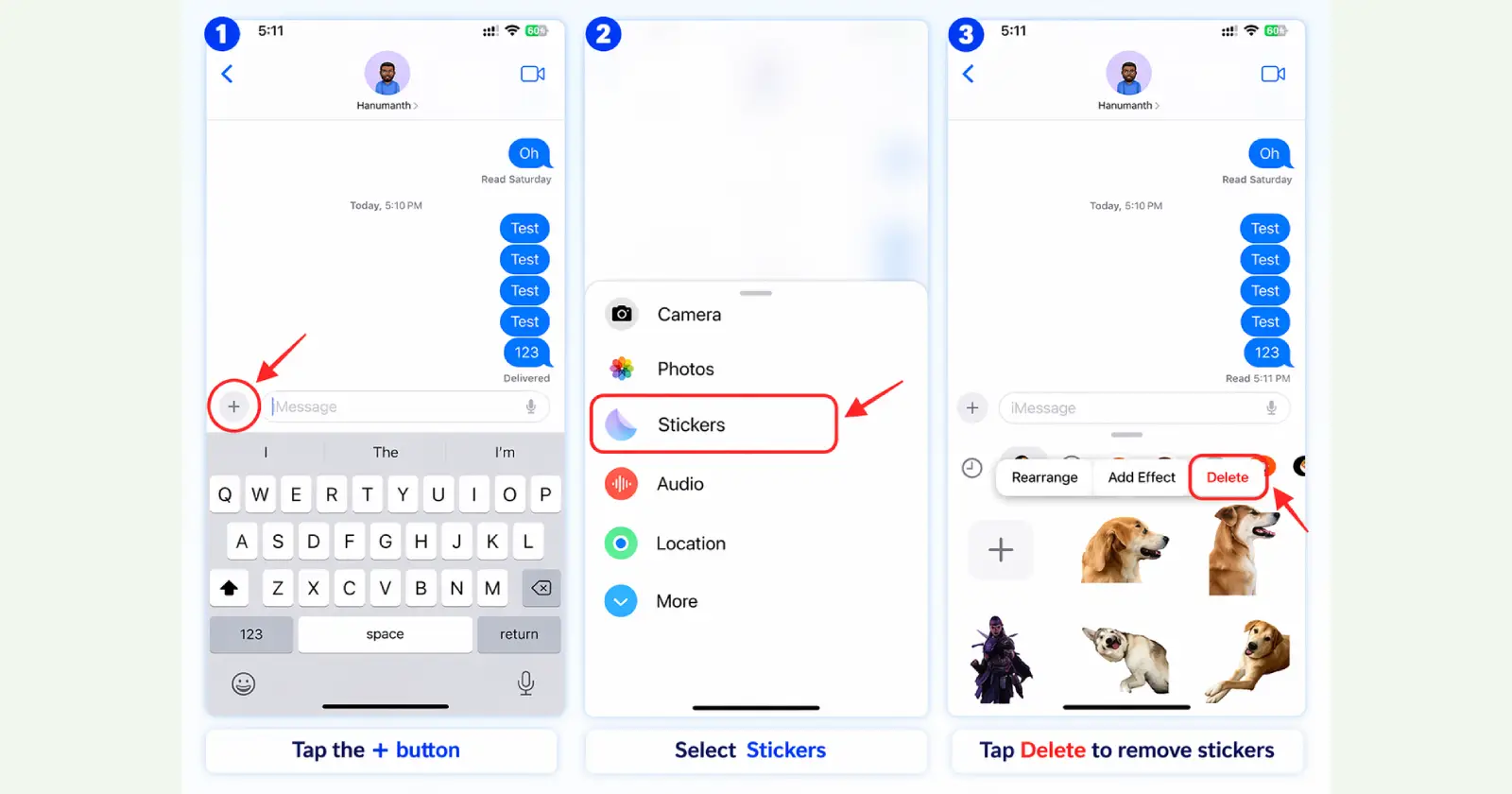
Done. Simple and quick.
In fact, most sticker deletion actions in iOS rely on long-press gestures inside the Messages sticker drawer.
Method 2: Remove a Sticker from a Text or Photo
If you simply want to remove a sticker from a message or a photo, you can do it directly without affecting your entire sticker collection.
Steps:
- Open the Messages app
- Go to the conversation where the sticker is used
- Find the message or photo with the sticker
- Tap Sticker Details
- Now, swipe left on the sticker
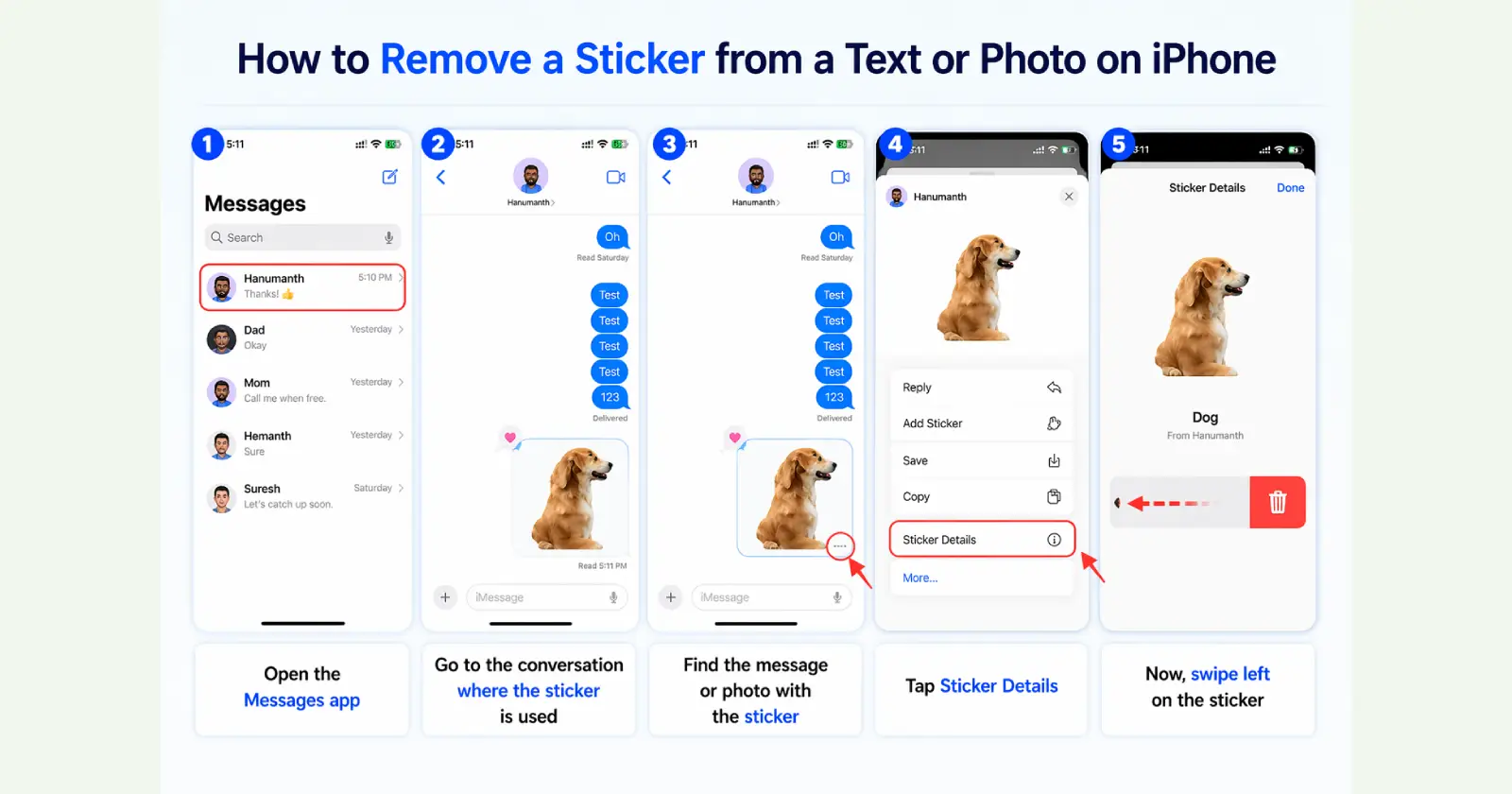
This will remove the sticker along with the message or image it’s attached to.
Method 3: Delete Custom Stickers in Other Apps
If you use stickers in apps other than Messages, like WhatsApp or Notes, you can remove them from there as well – but only if the app supports iPhone stickers.
Steps:
- Open any app that supports stickers (such as WhatsApp, Notes, or Instagram)
- Tap on a text field to bring up the keyboard
- Switch to the iPhone keyboard and tap the emoji icon
- Tap the stickers icon
- Find the sticker you want to remove
- Press and hold the sticker (don’t drag it)
- Lift your finger, then tap Delete
The sticker will be removed from your collection.
Quick Note
Not all apps support sticker deletion. Apps like YouTube or Google Search won’t show this option, so it only works in supported apps.
Read Also – Retrieve Deleted Text Messages iPhone
Pro Tips to Manage Stickers Better
Here’s something most guides don’t usually mention:
1. Disable Sticker Suggestions
- Go to Settings > General > Keyboard
- Turn off Stickers
2. Keep Only Useful Packs – Less clutter = faster typing
3. Review Regularly – Delete unused stickers every few weeks
Common Things People Get Wrong About iPhone Stickers
Let’s clear up a few common misconceptions, because stickers on iPhone don’t always work the way you might expect.
First, deleting a sticker from one place doesn’t mean that it will disappear everywhere. In most cases, stickers are managed within the app you’re using, especially inside the Messages sticker drawer.
Second, you can’t delete emoji stickers. They’re part of Apple’s built-in emoji system, so they’ll always stay on your keyboard.
And finally, removing a sticker from a message doesn’t remove it for the other person. It only disappears from your side of the conversation.
Final Thoughts
At the end of the day, managing stickers on iPhone isn’t complicated – it’s just a bit hidden.
Once you understand where each sticker lives (Photos, Messages, or apps), deleting them becomes super easy.
So if your keyboard feels messy right now, take a few minutes and clean it up. Trust me – it makes texting way smoother.
Read Also – iPhone Not Charging
