


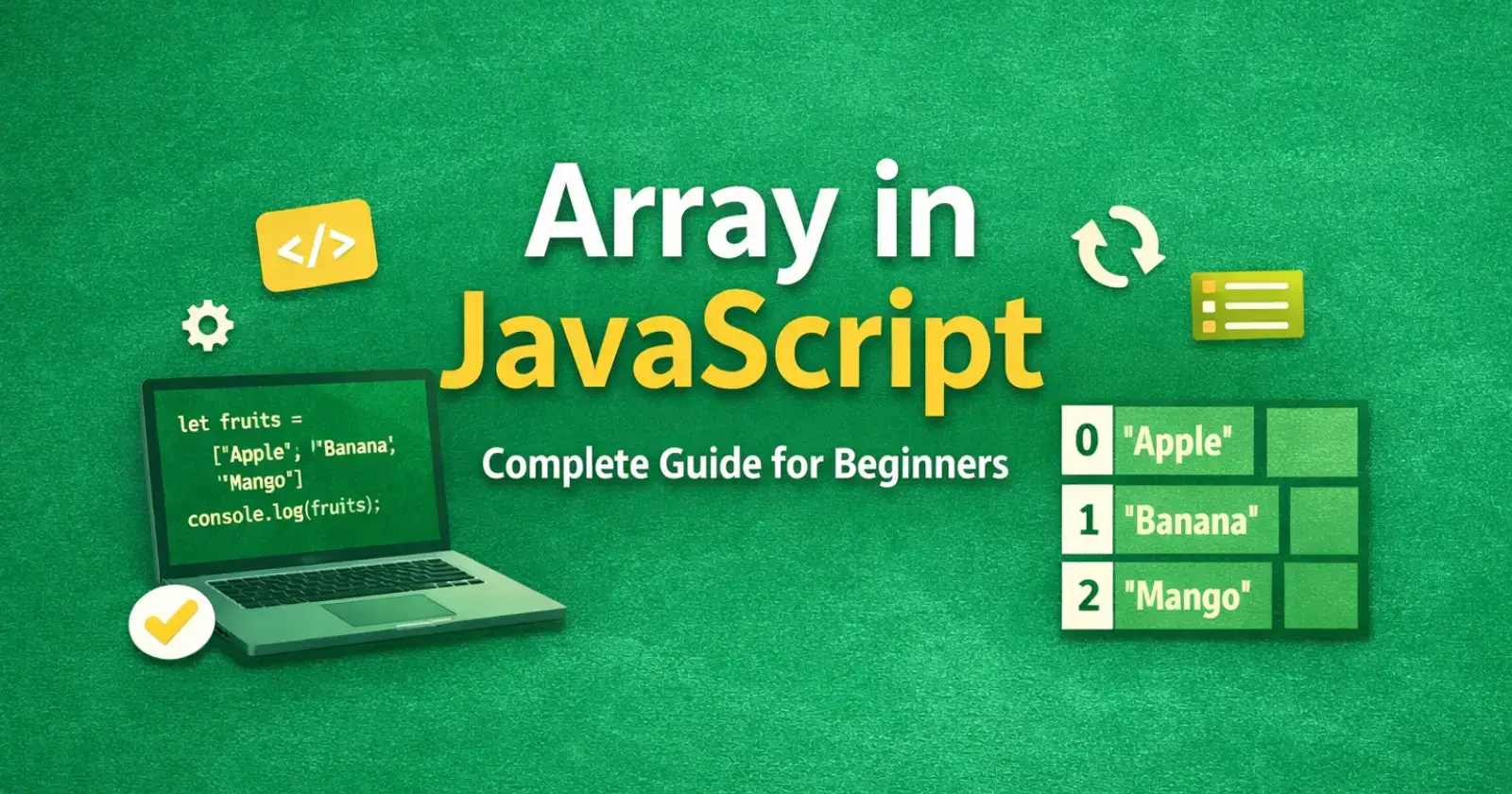
When we learn JavaScript, one concept shows up again and again: Array in JavaScript. It’s a very important topic in JavaScript.
With the help of an array, we can store multiple values inside a single variable. Almost every real-world JavaScript project uses arrays. Whether you build a to-do app, an eCommerce site, or a dashboard, arrays help you manage data easily.
In this complete beginner’s guide, I will explain Array in a simple way with practical examples.
What is an Array in JavaScript?
An array in JavaScript is a special variable that stores multiple values in a single place. Instead of creating separate variables like this –
let fruit1 = "Apple";

let fruit2 = "Banana";

let fruit3 = "Mango";
You can store everything inside one array, for example –
let fruits = ["Apple", "Banana", "Mango"];
Now you can manage all fruit names from one variable. In simple words, an array helps you group related data together.
Why Do We Use Arrays?
Arrays make your code cleaner and more powerful. Let’s take a real-life example.
Imagine you are building a shopping cart for an online store. A user adds multiple products to the cart. Instead of creating separate variables for every product, you store them inside an array.
Example –
let cartItems = ["Shoes", "T-Shirt", "Watch"];
Now you can –
- Add new items
- Remove items
- Count total items
- Loop through items
Without arrays, this becomes messy and difficult.
How to Create an Array in JavaScript
You can create an array in two common ways.
1. Using Array Literal (Recommended Way)
This is the most common and simple way in JavaScript to create an Array.
let numbers = [10, 20, 30, 40];
It is clean and easy to read. Most developers use this method.
2. Using the Array Constructor
You can also create an array using the Array constructor.
let numbers = new Array(10, 20, 30, 40);
This works, but beginners should mostly use the first method.
How to Access Array Elements
Every element in an array has an index number. The index always starts from 0 in JavaScript.
For Example –
let fruits = ["Apple", "Banana", "Mango"];
Index positions:
- Apple → 0
- Banana → 1
- Mango → 2
To access “Banana”, we will write –
console.log(fruits[1]);
Output:
Banana
Real use case –
If you build a quiz app, you can store questions in an array and access them using index numbers.
Common and Most Important Array Methods (With Real Examples)
JavaScript gives many built-in methods to work with arrays. Let’s understand the most important ones.
1. push() – Add Item to the End in Array
The push() method adds one or more elements to the end of an array. It increases the length of the array and updates it instantly.
let cart = ["Shoes", "T-Shirt"];

cart.push("Watch");
Now cart becomes –
["Shoes", "T-Shirt", "Watch"]
Real use case –
When a user clicks “Add to Cart”, you use push() to add the product.
2. pop() – Remove Last Item from Array
The pop() method removes the last element from an array. It also returns the removed element.
cart.pop();
This removes “Watch” from the array.
Use case –
When a user removes the last added item.
3. shift() – Remove First Item from Array
The shift() method removes the first element from an array and shifts all remaining elements to a lower index.
cart.shift();
This removes the first element.
Use case –
If you manage a queue system (like customer support tickets).
4. unshift() – Add Item to Beginning of Array
The unshift() method adds one or more elements to the beginning of an array.
cart.unshift("Cap");
This adds an item at the beginning in Array.
Use case –
If you want to show latest notifications first.
5. indexOf() – Find Position of Array items
The indexOf() method finds the position of a specific element in an array. If it finds the value, it returns its index number.
let fruits = ["Apple", "Banana", "Mango"];

console.log(fruits.indexOf("Mango"));
Output:
2
Use case:
To check if a product already exists in cart.
6. includes() – Check if Item Exists in Array
The includes() method checks whether an array contains a specific value. It returns true if the value exists and false if it does not.
fruits.includes("Apple");
It returns true or false.
Use case –
Check if a user already selected a course.
7. slice() – Copy Part of Array
The slice() method creates a shallow copy of a portion of an array without changing the original array.
let numbers = [1, 2, 3, 4, 5];

let newNumbers = numbers.slice(1, 4);
Output:
[2, 3, 4]
Use case –
Pagination system in a websites.
8. splice() – Add or Remove Elements from Array
The splice() method adds, removes, or replaces elements inside an array. Unlike slice(), it modifies the original array directly.
let fruits = ["Apple", "Banana", "Mango"];

fruits.splice(1, 1);
This removes “Banana”.
Use case –
Edit or delete items from a list dynamically.
How to Loop Through an Array
In real projects, you often need to display all items.
1. Using for Loop
let fruits = ["Apple", "Banana", "Mango"];

for (let i = 0; i < fruits.length; i++) {

  console.log(fruits[i]);

}
2. Using for…of
for (let fruit of fruits) {

  console.log(fruit);

}
Cleaner and easier to read.
3. Using forEach()
fruits.forEach(function(fruit) {

  console.log(fruit);

});
Very common in modern JavaScript apps.
Use case:
Displaying product lists on a webpage.
Multidimensional Arrays
A multidimensional array means an array inside another array. Yes, it’s possible in JavaScript.
For Example-
let students = [

  ["Rahul", 85],

  ["Aman", 90],

  ["Sneha", 88]

];
You can access –
console.log(students[0][0]);
Output:
Rahul
Use case –
Storing table-like data such as marksheets or reports.
Important Tips for Beginners
- The array index always starts from 0.
- Arrays can store mixed data types.
- Always check the array length before accessing elements.
- Use meaningful variable names like cartItems, userList, productData.
Final Thoughts
Understanding Array in JavaScript is one of the most important steps in your JavaScript journey. Arrays help you –
- Store multiple values.
- Manage dynamic data.
- Build real-world applications.
- Write cleaner and scalable code.
If you master arrays, you will find it much easier to learn advanced topics like objects, functions, and APIs. Start practicing today. Create small examples. Build a mini to-do list or shopping cart project. The more you practice, the more confident you will feel.
You Might Also Like –
