


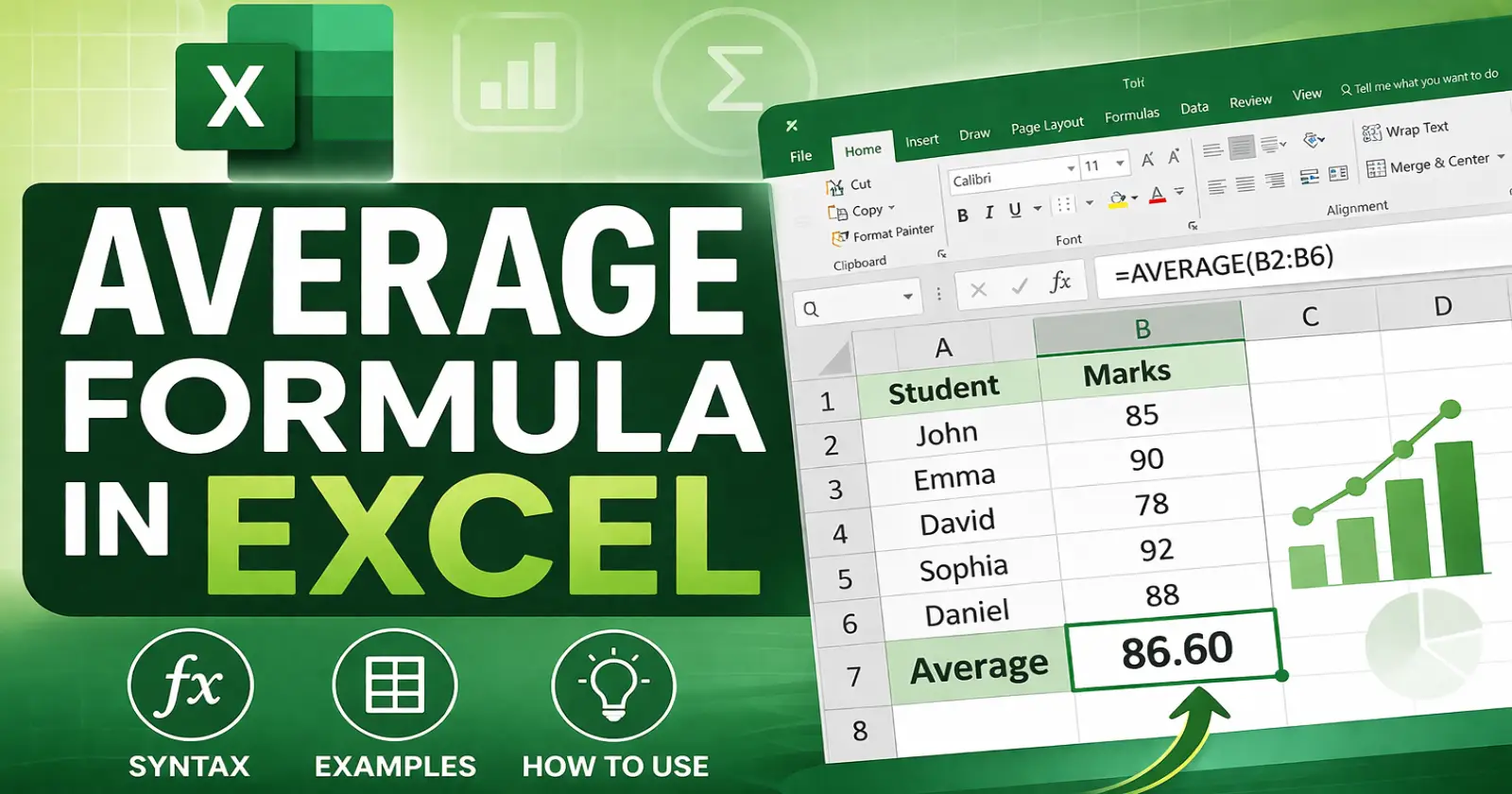
When we work with data in Microsoft Excel, calculating the average is one of the most common tasks.
The average formula in Excel helps you quickly find the mean value of a range of numbers without doing manual calculations.
In simple terms, Excel does all the hard work for you – you just need to use the right formula.
What Is the Average Formula in Excel?
The average formula in Excel is used to calculate the mean of a group of numbers. It adds all the values and then divides the total by the number of values.
For example: If you have numbers like 10, 20, and 30, the average would be:
(10 + 20 + 30) ÷ 3 = 20
Instead of calculating this manually, Excel can do it instantly using a built-in function.
Syntax of the Average Formula in Excel
The syntax of the formula is very simple:
=AVERAGE(number1, [number2], …)
Explanation:
- number1 – First number or cell reference
- number2 – (Optional) Additional numbers or ranges
You can either:
- Enter numbers directly
- Or select a range of cells
How to Use the Average Formula in Excel (Step-by-Step)
Let’s understand how to use the average formula in Excel with a simple example.
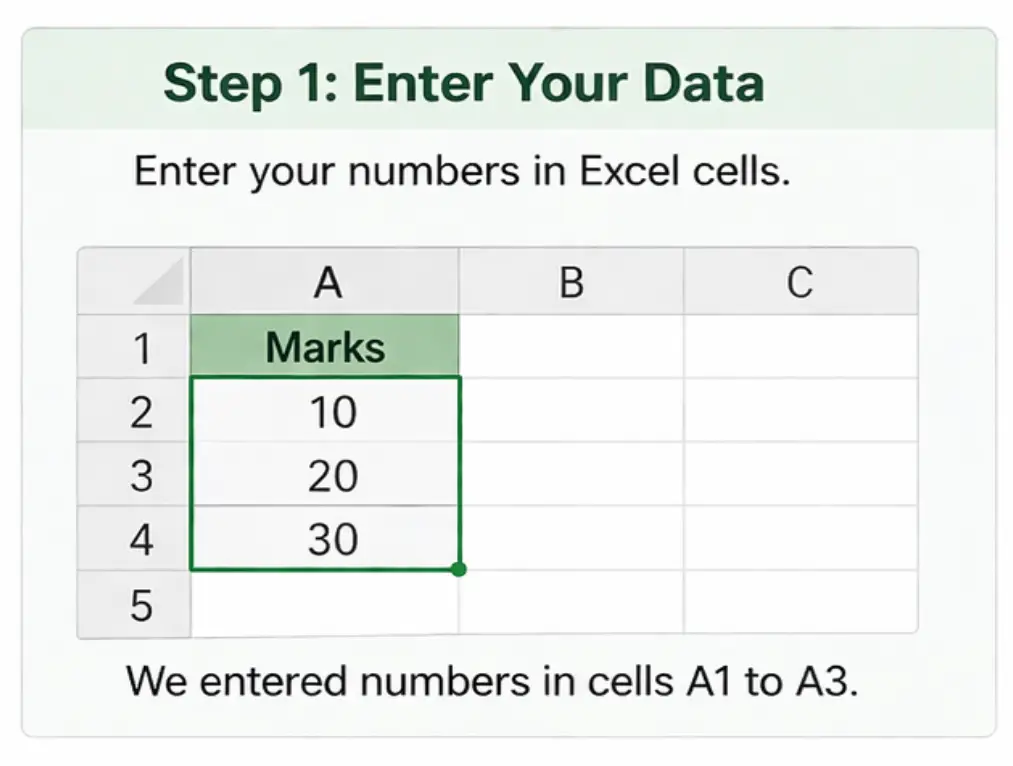
Step 1: Enter Your Data
First, enter your data into Excel cells.
Example:
A1: 10
A2: 20
A3: 30
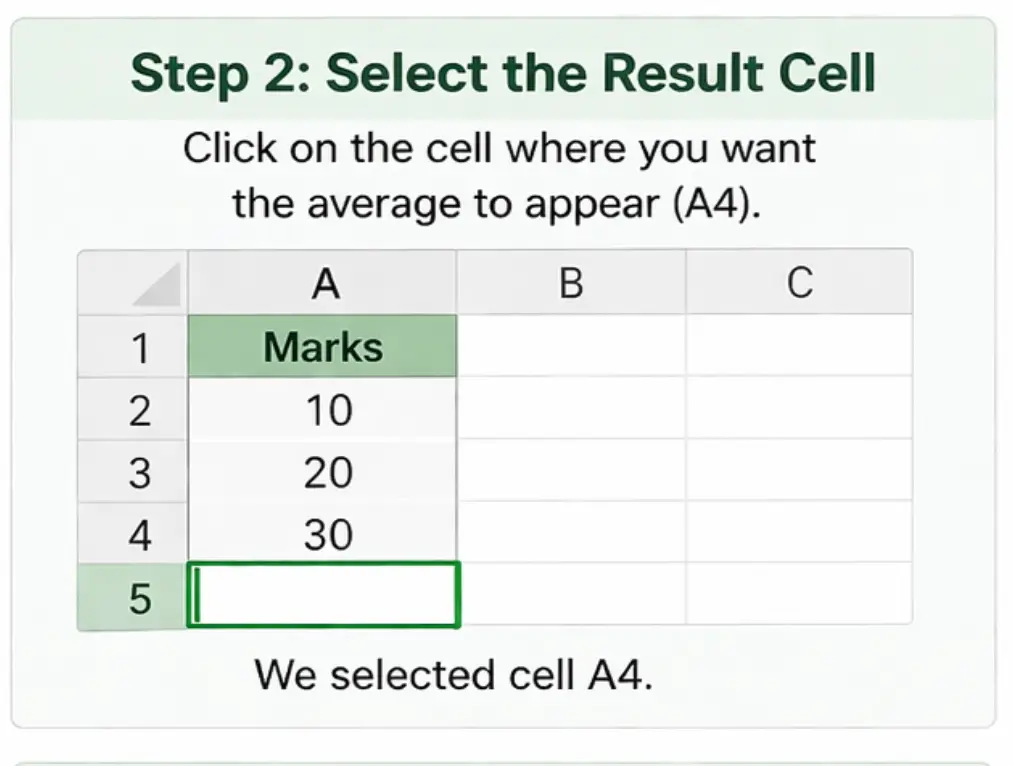
Step 2: Select the Result Cell
Click on the cell where you want the result to appear (for example, A4).
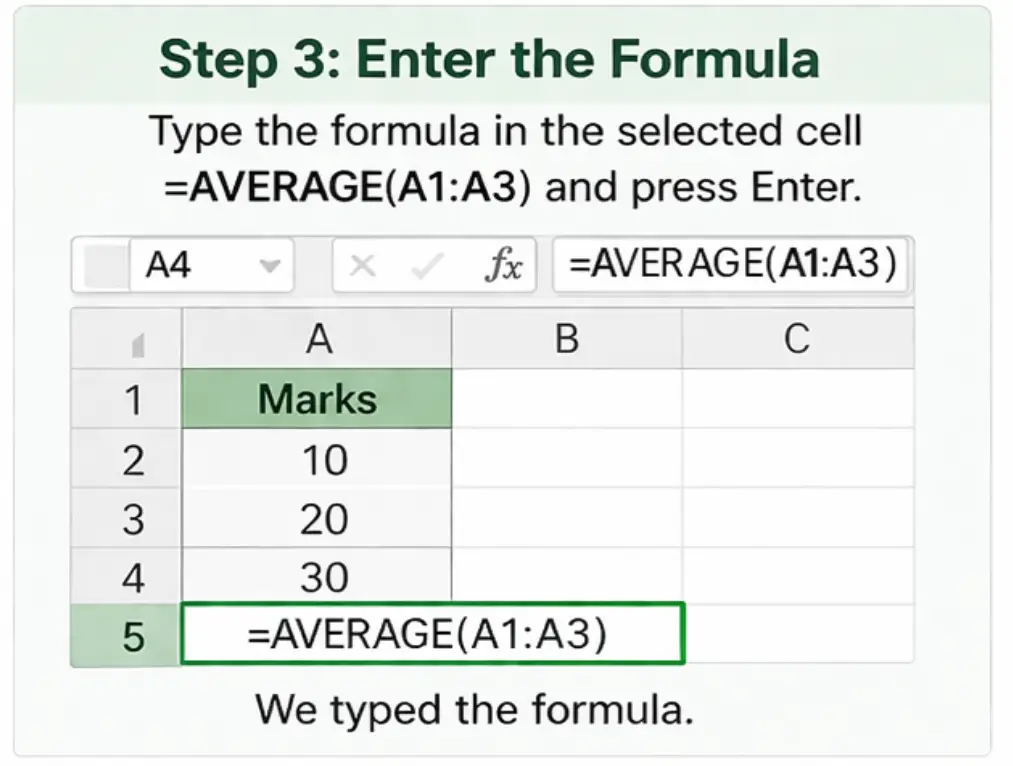
Step 3: Enter the Formula
Type the formula:
=AVERAGE(A1:A3)
Then press Enter.
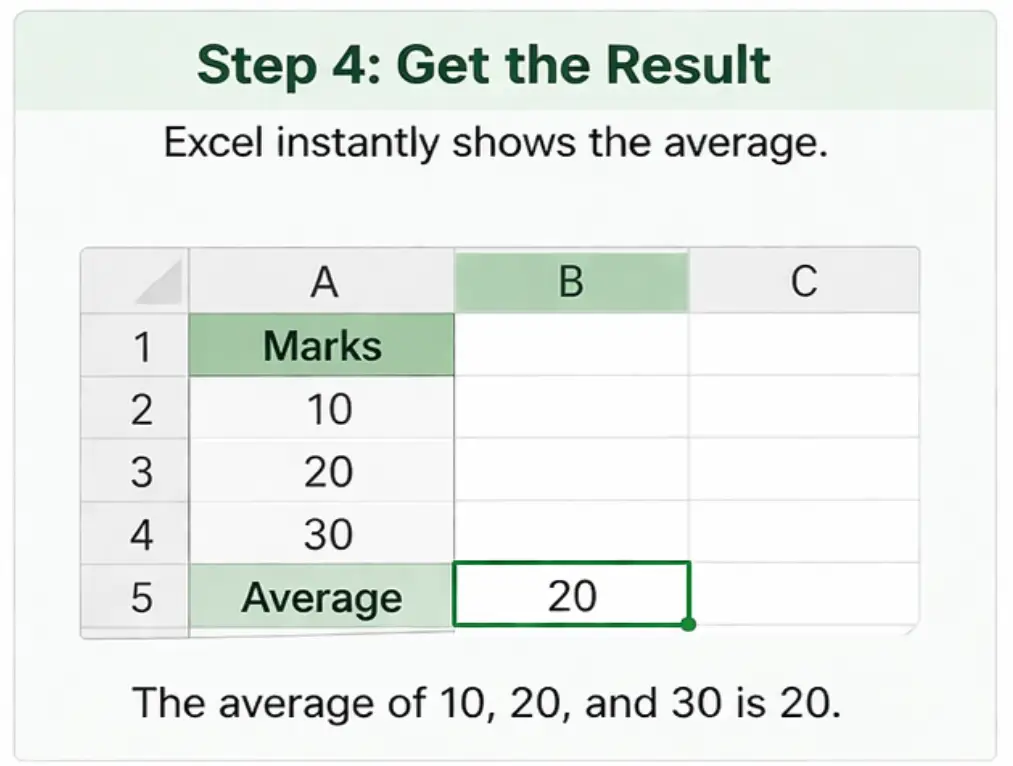
Step 4: Get the Result
Excel will instantly return the result:
👉 Average = 20
Examples of Average Formula in Excel
Now let’s look at a few practical examples to understand it better.
🔹 Example 1: Average of Numbers
=AVERAGE(5, 10, 15)
👉 Result: 10
🔹 Example 2: Average of a Range
=AVERAGE(B1:B5)
👉 Excel calculates the average of all values in that range.
🔹 Example 3: Ignoring Empty Cells
Excel automatically ignores blank cells when calculating the average.
This makes the formula very useful for real-world datasets.
Important Things to Know
Before using the average formula in Excel, keep these points in mind:
- Excel ignores empty cells
- Text values are also ignored
- Cells with zero (0) are included in the calculation
- If no valid numbers exist, Excel returns an error
Common Mistakes to Avoid
Let’s look at some common mistakes beginners make:
- ❌ Selecting the wrong range
- ❌ Including text values unintentionally
- ❌ Forgetting the equal sign (=)
Always double-check your formula before pressing Enter.
When Should You Use the Average Formula?
You can use this formula in many real-life situations:
- Calculating student marks
- Finding average sales
- Analyzing performance data
- Financial calculations
In short, whenever you need the mean value, this formula is your best friend.
Summing It Up
The average formula in Excel is a simple yet powerful tool that helps you calculate the mean quickly and accurately.
By using the =AVERAGE() function, you can save time and avoid manual errors.
Once you understand the syntax and practice a few examples, using this formula becomes very easy.
FAQ’s
1. What is the formula for average in Excel?
The formula is =AVERAGE(range) where you select the cells containing numbers.
2. Does Excel ignore blank cells in the average?
Yes, Excel automatically ignores blank cells when calculating the average.
3. Can I use the average formula with text?
No, text values are ignored in the calculation.
Read Also – Excel Shortcut Keys
