


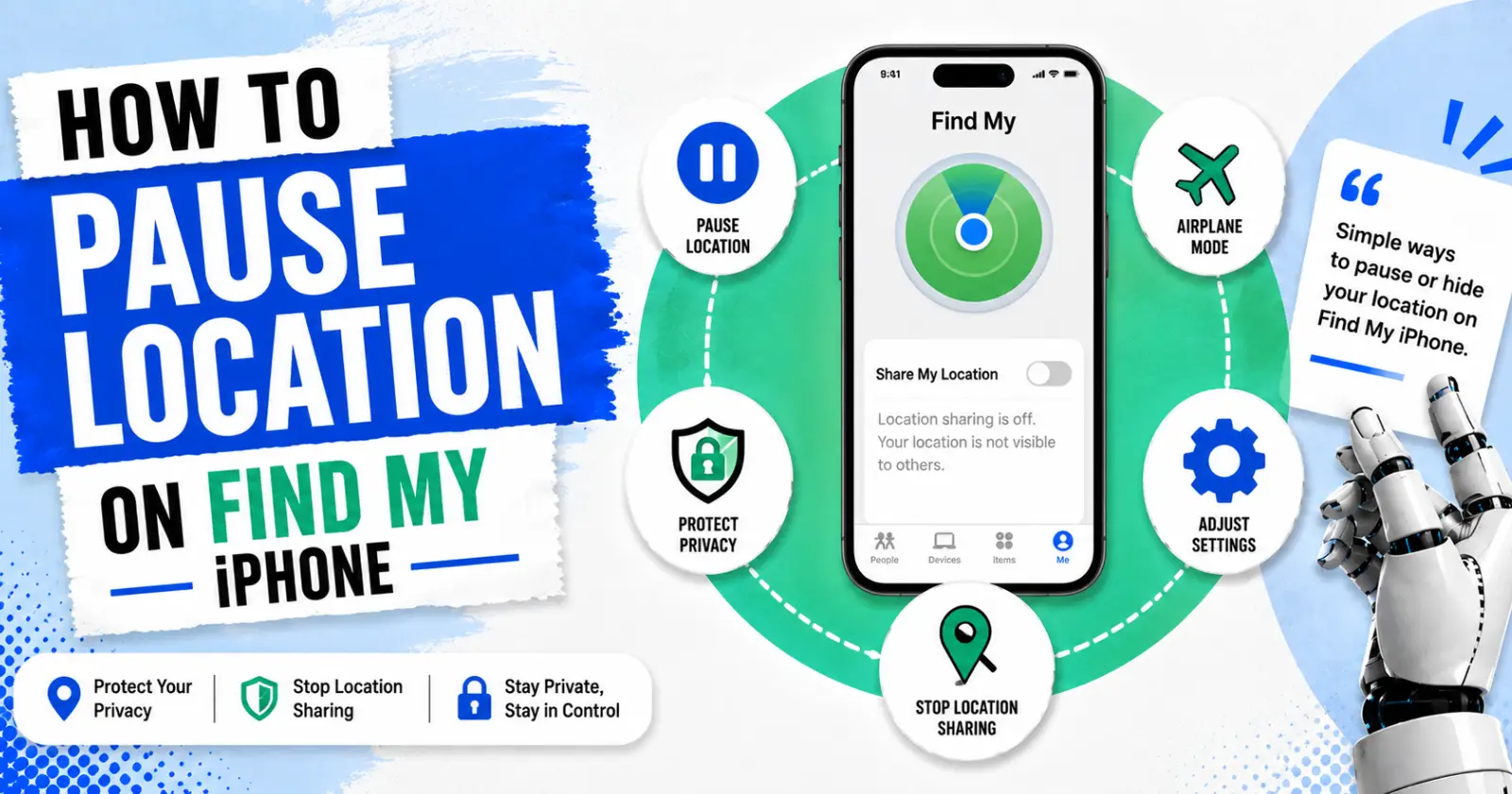
Using an iPhone may make you feel authentic until you discover the Find My iPhone features. Sharing your live location through the Apple Find My iPhone app helps your family members know your location and ensure your safety.
Though Find My iPhone is one of the safe features, imagine being tracked all the time. You can’t plan any surprise visits or have any privacy for yourself with your iPhone. It’s kind of annoying, right? That’s where this blog comes in.
Read the blog to understand how to pause your location on Find My iPhone and for step-by-step guidance for effective recovery.
Understand Why People Look to Pause or Freeze Locations on iPhone
In Apple’s design, it lets you share or not share your location. It has a built-in Find My iPhone, which works incredibly well by offering safety, meetups, and tracking. But many people feel irritated by the feature updates that share your location every time without any privacy. Therefore, people are eagerly looking for a way to pause or freeze location on the iPhone.
Though there is no label for “pause” in the features, users can find loopholes in the Find My iPhone features and temporarily pause it effectively by stopping GPS sharing or turning off your device.
Several Methods To Turn Off Your Location in iPhone
Here is step-by-step guidance for several methods to turn off or freeze your location on Find My iPhone.
Method 1 – Turn Off ‘Share My Location’ in Settings
Turning off location sharing on the iPhone is one of the simple and easy steps to pause your location from everyone.
➤ Steps
- Select the Settings app
- Click your Apple ID at the top.
- Tap the Find My button.
- Open and share my location and turn it off.
For those who want privacy but are confused about how to pause your location on Find My iPhone, this method is an effective option. When you turn off location sharing, the iPhone will automatically stop sharing your location through Find My to the public contacts.
Method 2 – Avoid Sharing Location to a Specific Person on the Find My App
Sometimes, you may find it disturbing to share your location with certain individuals. You can adjust your location sharing per contact in the Find My app. Here are the steps
- Open the Find My app
- Scroll down to find the People tab.
- Tap it and choose whom you want to unshare your location with
- Press Stop sharing my location.
These methods help you protect your privacy from certain people and allow your family members to see and check your location for safety.
Method 3 – Use Airplane Mode to Freeze Live Updates
Turning on airplane mode is one of the quickest ways to pause your location. As you are disabled, both cellular and GPS are disabled; no one can track or find your location or update your location on their phone. Here are the steps.
- Open Control Center in Settings
- Look for the airplane icon.
- Tap to turn on airplane mode.
- You can keep airplane mode as long as you want and turn it off with a single tap.
Using airplane mode helps to disconnect the Find My app and allows you to enjoy privacy without anyone’s disturbance. However, you need to understand that you may miss calls or any messages from your contacts. You also need to accept accessing everything manually without mobile data unless you reconnect to Wi-Fi.
Method 4 – Turn Off Find My Access To Location Services
If you want a day-to-day private life, you can follow the technical approach of turning off Find My access. By using the iOS privacy setting, you can block the Find My App from using your location. Here are the steps
- Open Settings application
- Tap the Privacy and Security button.
- Click “location services.”
- Scroll down the features and tap the Find My app.
- Tap the “never” or “restrictive” option to block access to your location.
If you are a user who is concerned about comfort in day-to-day life and wondering how to pause location in Find My iPhone, you can follow this method. By using this method, the Find My app will no longer receive GPS data, and therefore you can’t access your location.
Method 5 – Turn off Location Services Completely
If you are looking for a completely private life with your iPhone, you can use this method to turn off the location service completely. It disables location for all apps, not just Find My, and gives you a secure life.
Here are the steps.
- Open Settings
- Click the Privacy and Security button.
- Tap Location Services
- Click Location Services off at the top.
- Confirm it to turn it off completely.
By following these steps, your iPhone loses location control for all apps, including maps and social platforms. You have to turn it on manually for each app to access it.
Final Words
The Find My iPhone feature triggers both safety and security but threatens privacy for individuals. By using these effective methods and simple steps, you can temporarily or permanently block location access on your iPhone. It helps to give you comfort and privacy for the time being. Use these methods and enjoy the private life you deserve with an iPhone.
Read Also – What Does “Live” Mean on Find My iPhone
