


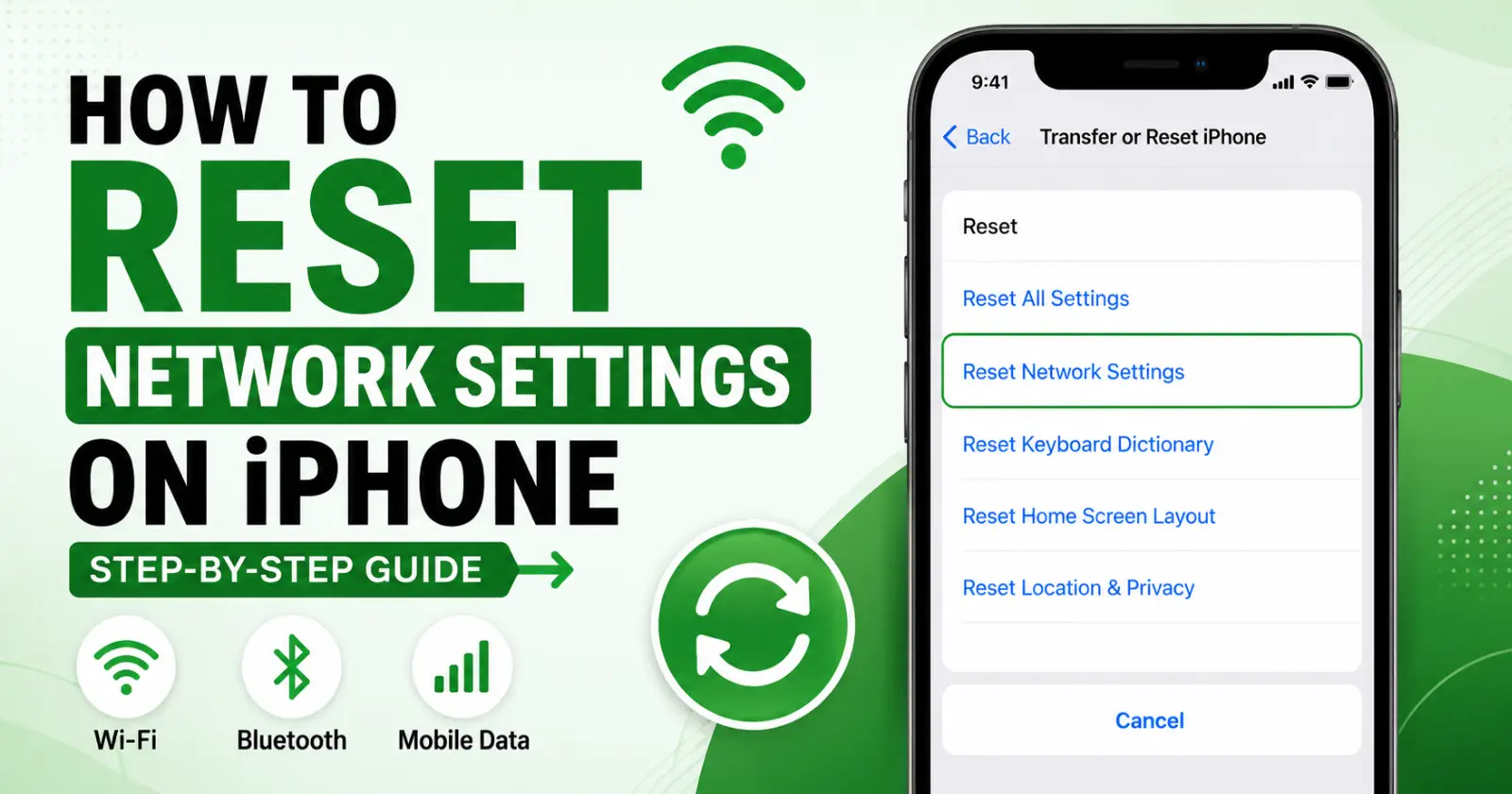
Internet problems on an iPhone can happen suddenly at unexpected times. WiFi may also stop working, mobile data may become slow, and connections can disconnect without warning. Many users spend time changing different settings while trying to resolve the issue.
Learning how to reset network settings on an iPhone can help fix connection problems quickly and easily. This option refreshes the phone’s network settings without deleting your personal data or important information.
What Does a Network Reset Do?
A network reset will delete all information you have saved for your connections, including Wi-Fi passwords, Bluetooth pairing, and any other connection-related data.
This process will not delete any other data related to the user’s information. It will only reset the network to its original settings. Network reset is done by people who have encountered many connection issues or problems with their connection speed and accessories using WiFi or Bluetooth.
Common Signs of Reset
Several connection problems suggest that a network reset may improve the device’s performance. These issues usually continue even after restarting the phone or reconnecting to available networks.
Common Signs include
- WiFi disconnecting repeatedly
- Mobile data is not loading properly
- Bluetooth device failing to pair
- Slow browsing on a stable internet
- VPN connections are not responding
These problems often develop from damaged or outdated network settings stored on the device. Resetting the setting refreshes the entire communication system.
Things to Do Before Starting the Reset
Preparation helps to avoid confusion once the reset process begins. Since saved WiFi networks disappear after the reset, users should remember important passwords before continuing with the procedure. The steps are:
- Charge the iPhone properly
- Save important Wi-Fi passwords
- Disconnect unnecessary Bluetooth devices
- Close unused background applications
Step-by-Step Process to Reset Settings
Apple keeps the network reset option inside the General settings section of the iPhone. The process takes only a few minutes and requires no advanced technical knowledge. Use these steps one by one carefully.
- Open the settings app
- Tap General
- Select Transfer or Reset iPhone
- Tap Reset
- Choose Reset Network Settings
- Enter the passcode
- Confirm the reset option
The iPhone restarts automatically after confirmation. All network-related settings return to their factory-default condition once the reboot finishes.
What Happens After the Reset Finishes
The iPhone starts with fresh network settings after the restart process completes. Previously saved WiFi networks disappear, and Bluetooth accessories are disconnected from the device automatically.
Users must reconnect manually to wireless networks and pair Bluetooth devices individually. Mobile carrier settings usually reconnect within a short time. Knowing how to reset network settings on iPhone helps users understand why old network information no longer appears on the settings menu after the phone network restarts successfully.
Read Also – How To Delete Apps On iPhone
Simple Tips to Prevent Future Network Issues
Regular maintenance can reduce many common network problems on an iPhone. Connection failures often develop slowly through outdated software, unstable public networks, or excessive stored connection profiles. Helpful practices include
- Update iOS regularly
- Remove unused Bluetooth devices
- Restart the phone occasionally
- Avoid unreliable public WiFi
- Keep carrier settings updated
These small habits improve long-term device performance and help maintain stronger wireless connections across different internet environments used every day.
To Sum Up
Lastly, network issues may affect the flow of communication, working online, and having fun throughout the day. An adequate iPhone network reset will help restore the network and improve its stability without applying complex techniques for identifying the challenges.
Exploring how to reset network settings on iPhone provides great opportunities to handle all kinds of connectivity challenges regarding WiFi, Bluetooth, and mobile data. Regular device maintenance can further improve connection stability and overall iPhone performance over time.
Read Also – How to Reset AirPods
