


Sharing your location on an iPhone is very useful. It helps your friends or family members to know where you are in real time.
For example, you can share your location when you are traveling, meeting someone, or staying safe in a new place.
The best part? It is very easy to do. You can use it according to your requirements.
In this guide, you will learn how to share location on iPhone step by step using different methods.
Why Share Location on iPhone?
Before we start, let’s quickly understand why this feature is very helpful on the iPhone.
You can:
- Let family track your location for safety
- Share your live location while traveling
- Help friends find you easily
- Keep track of your kids or loved ones
So, now let’s see how it works.
Ways to Share Location on iPhone
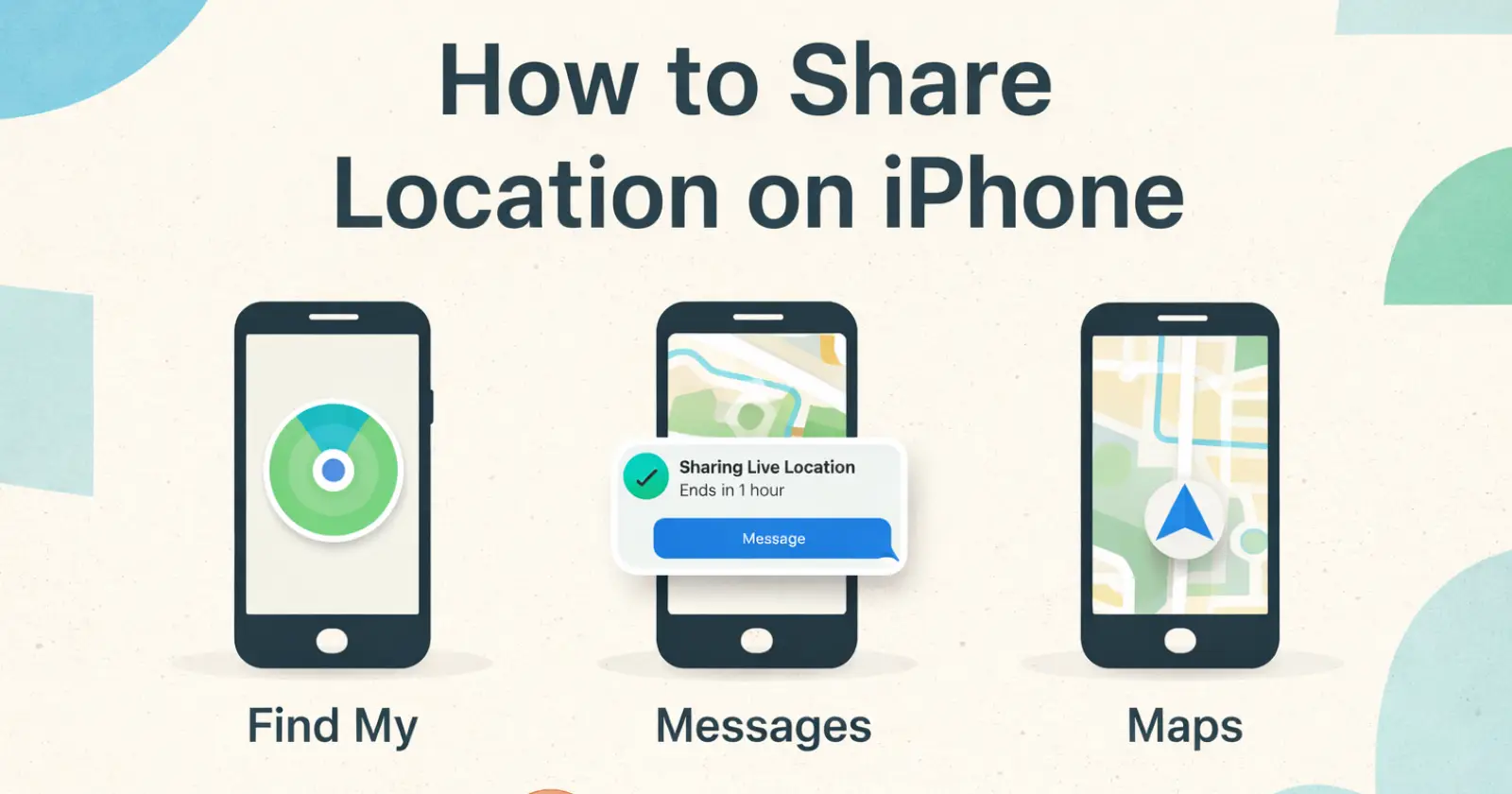
There are three simple ways to share your location on an iPhone. Each method works in a slightly different way. You can choose the one that fits your needs. Let’s see how these methods work –
- Use Find My to share your live location for a longer time
- Use Messages to send your location in a chat
- Use Maps to share your current location
Each method shares a different type of location:
- Find My → Share ongoing (live location for a longer time)
- Messages → Share once or share on the way (current or live in chat)
- Maps → Share once (your current location only)
You can choose the method based on what you need. Now, follow the steps below.
Method 1: Share Location Using Find My App
The Find My app is the best option if you want to share your live location for a long time. It works only between iPhone users and requires an Apple ID on both devices. This method is useful when you want someone to track your location in real time. Let’s see how it works –
➤ Step-by-Step
- Open the Find My app
- Tap on the People tab at the bottom
- Tap Share My Location
- Enter the contact name or phone number
- Tap Send
- Choose how long you want to share:
- Share for one hour
- Share until end of day
- Share indefinitely
That’s it. Your location is now shared.
Tip – The other person must also have location sharing enabled.
Method 2: Share Location Using Messages App
The Messages app is a quick way to share your location in a chat. It works with both iPhone and Android users. You can send your current location or share your live location while you are moving.
➤ Steps
- First, open the Messages app
- Now, open a conversation
- Tap the Plus (+) button next to the message box at the bottom
- Tap Location
- Tap Share Live Location
OR
Tap Share My Location if you want to share live location.
Method 3: Share Location Using Apple Maps
Apple Maps app is the best when you want to share your current location quickly. It works with any device, including Android, by sending a location link. However, it only shares your current location, not live tracking.
➤ Steps
- Open Maps
- Tap on the blue dot (your location)
- Tap Share My Location
- Now, you can choose any app (Messages, WhatsApp, etc.)
Now send it to anyone you want.
How to Turn On Location Services
If location sharing is not working, then please check that your location service is on or off.
Steps to On Location in iPhone
- First Open Settings App
- Now Tap Privacy & Security
- Then Tap Location Services
- Turn it ON
Also, make sure:
- “Share My Location” is enabled
- Find My is allowed to access the location
How to Stop Sharing Location
You can stop sharing location anytime. It is very simple and easy.
➤ Using Find My
- Open Find My
- Tap People
- Select the person
- Tap Stop Sharing My Location
➤ Using Messages
- Open chat
- Tap contact name
- Tap Stop Sharing Location
Common Issues (And Fixes)
Sometimes location sharing may not work. If you face any issues, then you can try these quick fixes:
- Location not updating – Turn location services OFF and ON again
- Contact can’t see location – Make sure both users have internet
- Find My is not working – Sign out and sign back into iCloud
Tips for Better Use
- Keep the GPS ON for an accurate location
- Use Wi-Fi or mobile data for real-time updates
- Share location only with trusted people
- Avoid sharing indefinitely unless needed
Frequently Asked Questions
1. Can I share my location from an iPhone to an Android?
Yes. You can share via apps like Messages, WhatsApp, or Google Maps.
2. Is location sharing safe?
Yes, but only share with people you trust.
3. Can I share location without internet?
No. The Internet is required for live location sharing.
4. How long can I share my location?
You can choose:
- 1 hour
- Until the end of the day
- Forever (until you stop it)
Bottom Line
Now you know how to share location on iPhone using simple steps. The easiest way is the Find My app, but you can also use Messages or Maps based on your need, if another user has an Android phone.
Start using this feature today. It will make your life easier and safer.
Just remember: Share your location wisely and only when needed.
Read Also – iPhone Not Charging
