


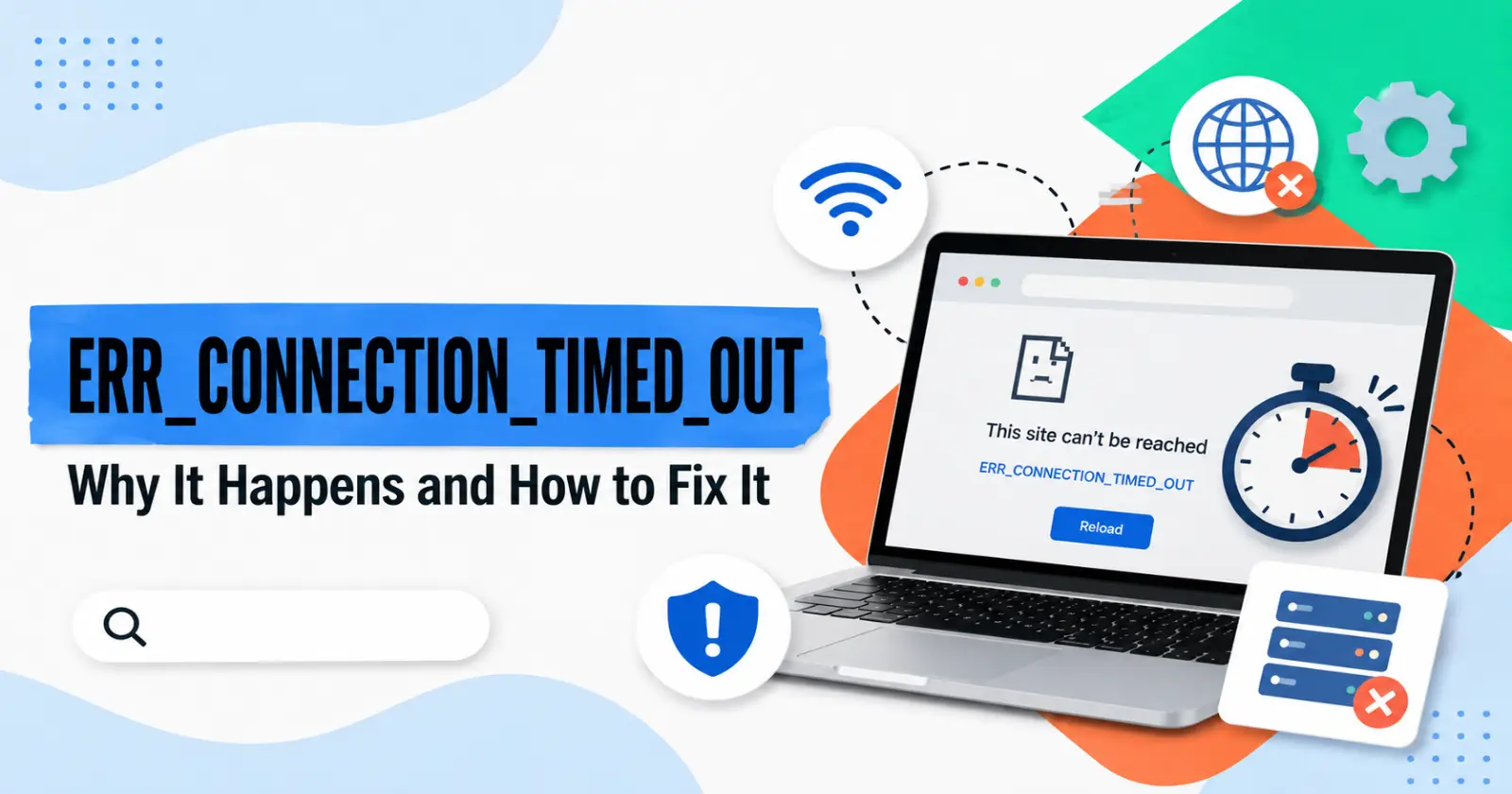
It’s normal to feel more frustrated when a website fails or takes several seconds to load, especially when you’re trying to complete an important task. Sometimes, browsers suddenly show the err_connection_timed_out message, leaving many people confused about what actually caused the problem. This issue appears on different browsers, devices, and internet connections. The error usually points toward a communication delay between your browser and the website’s server. A slow network, incorrect settings, overloaded cache files, or blocked connections can all trigger this interruption during regular browsing activities.
What is a Browser Error?
This error appears when the browser waits too long for the website server to respond. The connection request stays active for several seconds. The process eventually stops automatically after reaching the waiting limit.
A timeout message does not always mean the website is permanently unavailable. Many temporary network interruptions create similar situations during normal browsing sessions. The browser simply fails to complete the communication process within the expected time period. Note when:
- The browser waits for the server’s response
- The connection process exceeds the allowed time
- The website fails to send data quickly
- Network communication gets interrupted
Weak Internet Connections Often Trigger the Problem
Internet instability remains the most common reason behind loading failures. Weak WiFi connection, limited mobile data strength, or unstable router performance can interrupt website communication repeatedly during browsing sessions.
Restarting the modem or router often refreshes the network connection successfully. Many temporary internet issues disappear after a simple restart. Users connected through public networks may experience slower performance due to heavy traffic from multiple connected devices.
Do these:
- Restart the router carefully
- Check signal strength levels
- Disconnect unused connected devices
- Test another website connection
Browser Cache Files Can Create Loading Conflicts
Browsers store temporary files to improve loading speed for future visits. These saved files occasionally become outdated or damaged after website updates. Corrupted cache data may interfere with server communication and trigger loading delays.
Clearing browser cache files removes old stored data from the system. This refresh process forces the browser to download updated website information again. Many users notice faster browsing performance after removing unnecessary temporary files from their browser storage.
Do these:
- Clear cached website files
- Remove the cookies carefully
- Restart the browser afterward
- Reload the affected webpage
Read Also – Clear Chrome DNS Cache (chrome //net-internals/#dns) Easily
Incorrect DNS Settings May Interrupt Website Access
Domain Name System settings help browsers locate website servers across the internet. Incorrect DNS configurations sometimes slow down this process significantly. The browser may fail to identify the correct server location within the expected response time.
Switching to a reliable public DNS service often improves browsing stability. Many users prefer trusted services like Google DNS or Cloudflare DNS for smoother website access. This adjustment may reduce repeated err_connection_timed_out problems during regular internet usage.
Try these ideas:
- Open the network settings panel
- Change the DNS server manually
- Save updated network settings
- Restart the internet connection
Firewall and Antivirus Tools Sometimes Block Connections
Security software protects devices from harmful online activity. Certain firewall or antivirus settings may mistakenly block trusted websites or browser communication requests. These restrictions occasionally prevent the website from loading properly within the browser window.
Temporarily disabling security software helps identify whether protection settings caused the issue. This test should remain short and controlled for safety reasons. Updating antivirus applications regularly reduces the chances of unnecessary website blocking during browsing sessions. What you can do:
- Review firewall permissions
- Check browser access settings
- Update antivirus software versions
- Re-enable protection after testing
VPN Services and Proxy Settings Can Slow Browsing
VPN connections route internet traffic through external servers located in different regions. This additional routing process sometimes increases response delays. Certain overloaded VPN servers struggle to maintain consistently fast communication speeds.
Proxy settings may create similar interruptions when incorrectly configured in the device. Disabling unused proxy connections, such as Proxyium or others, often improves browsing stability immediately. Many users resolve repeated err_connection_timed_out messages after turning off unnecessary network-routing services temporarily.
You can:
- Disconnect active VPN services
- Disable unused proxy settings
- Test the direct internet connection
- Reconnect service if required
Website Server Problems May Be Completely Outside Your Control
Sometimes the problem is not on your end. Your computer or internet connection is not at fault since even the website’s server can encounter issues in the form of technical problems or maintenance tasks.
Waiting several minutes before retrying often solves temporary server-related interruptions. Users can check the website status platforms to confirm whether the service remains unavailable globally. Contacting the website support team becomes useful when the issue continues for extended periods without improvement.
Users should:
- Retry after a short delay
- Check website outage reports
- Access the website later
- Contact support if necessary
To Wrap Up
Website loading errors can unexpectedly interrupt work, online payments, streaming sessions, and daily browsing. The err_connection_timed_out message usually points toward connection delays involving browsers, servers, internet settings, or security tools. Most situations become manageable after checking the network connection, clearing browser files, adjusting DNS settings, or reviewing firewall restrictions carefully.
A systematic troubleshooting approach often resolves the problem without advanced technical knowledge. Regular browser maintenance and stable internet performance reduce the chance of facing repeated timeouts during future browsing sessions.
Read Also – ERR_ADDRESS_UNREACHABLE
