


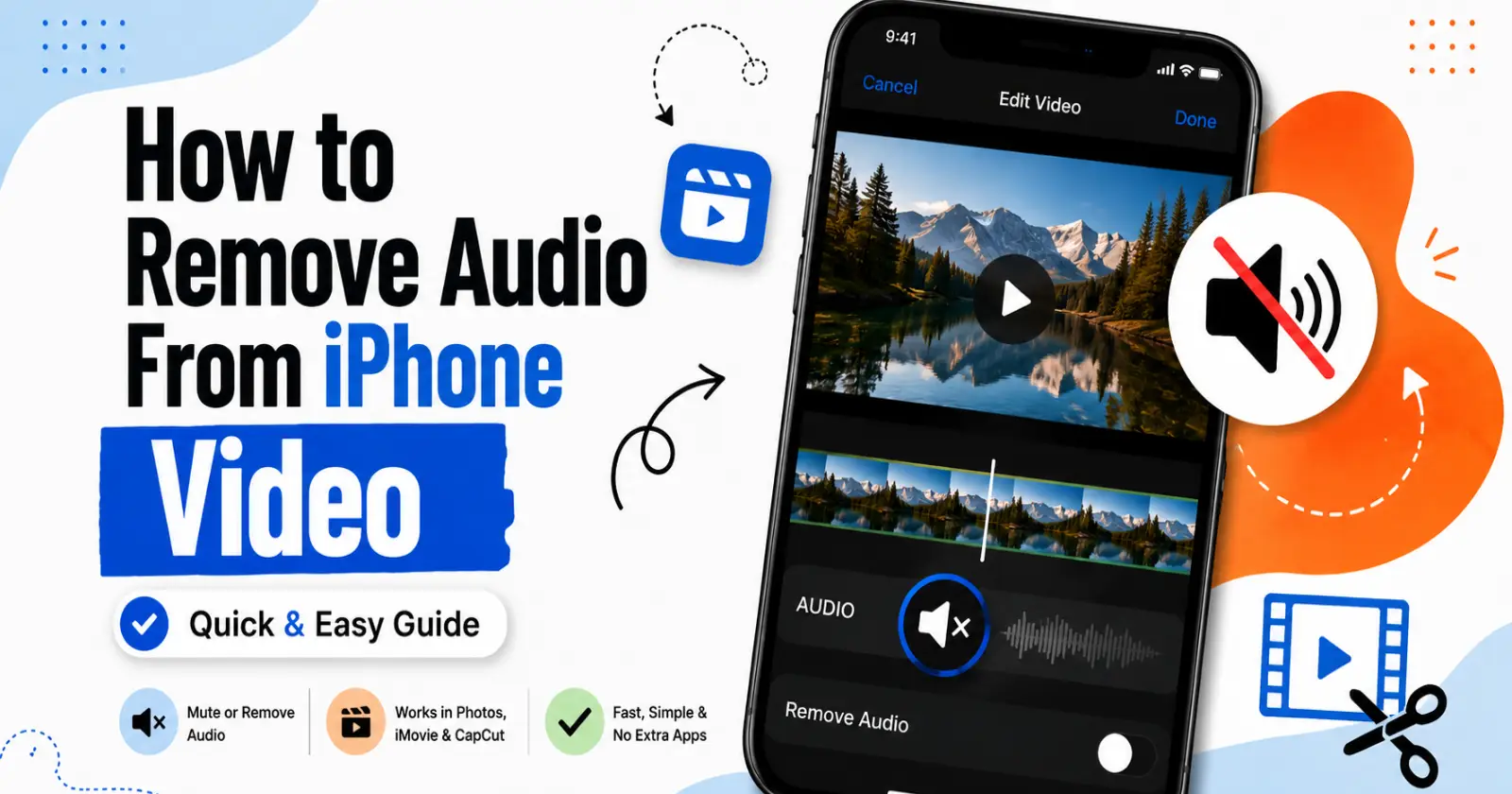
Whenever you capture videos, all the beautiful scenarios before the screens, the videos capture the background noises and air sounds. Though the videos look good, the unpleasant noises can easily spoil the video.
If you are planning to share a video without background noise and chatter on the iPhone or are questioning how to remove audio from an iPhone video for quality sharing, this blog will help you. The Apple iPhone can do various options, such as muting it or removing audio from a video, in a few taps without any third-party apps. Let’s dive in!
Quick and Easy Guidance on Removing Audio from iPhone Videos
Here are several methods that users can follow for removing the audio from the videos captured on the iPhone.
Method 1 – Using the Photos App to Remove Audio
In an iPhone, the Photos app comes with simple editor options where you can mute the video that you capture. It is one of the fastest ways to remove the audio in videos.
- Open the Photos app on iPhone.
- Scroll down and check the video you want to mute.
- Tap Edit in the right corner.
- Look for the Speaker icon and turn off the audio.
- Click “done” and save the videos without any background noise.
With these simple steps, users can now easily share the muted video with others on social media without worries about the background noise. In case you want the audio back, you can go to the speaker icon and turn off the audio easily.
It is helpful for users to quickly mute the audio before sharing with others. It also helps to hide the background chatter or embarrassing comments it holds and makes its content appropriate. As the photo app comes to the iPhone, the user doesn’t need to rush to download new apps.
Method 2 – Remove Audio Using CapCut or iMovie
Muting the videos in photos means the audio is still playing but in a silent zone. Though it is enough for most people, some people want to fully detach and select the audio tracks so they can use CapCut or iMovie to edit them.
➤ Using iMovie
- Open the iMovie app on your iPhone and tap Create Project – Movie.
- Select the video you want to edit and tap Create Movie.
- Tap the video clip to highlight it.
- Click “audio options” and choose “detach” to remove the audio completely from the video.
- When the separate audio track appears under the video, tap and delete it.
- Now you are done and can save the videos without the noisy audio track.
➤ Using CapCut
- Open CapCut and tap “new project.”
- Upload the video you want to edit and add to the timeline
- Open the video clip in the timeline to select it
- Tap the toolbar until you find the exact audio.
- Tap to separate the audio track and select the separated one to delete or remove it
- Tap “export” or “save” the videos to enhance a video file with no audio track.
For many creators who wondered how to remove audio from an iPhone video, it became a perfect solution. They use these tracks to replace the audio with music or content narration. As it completely erases and removes the audio, the original sound can’t be restored from the exported file. It helps the videos to look more authentic on social media posts and reels.
Read Also – Add Sticker to Photo on iPhone
Method 3 – Using a Third-Party App To Remove Audio
Many online TikTok influencers and YouTubers use online video editor apps to replace audio tracks. Though the iPhone app and iMovie work well, they prefer editing on laptops to mix multiple clips for videos. Here they are.
- Upload the video to an online editor site to remove the audio.
- Select the volume of the audio control option.
- Drag the volume to zero or to the mute icon.
- Then export and download the silent version of the video.
- Users can easily send it to their mobile or email.
This method seems flexible, as, along with audio editing, you can add text transitions and branding overlays in the videos. It is helpful for users who prefer to work with desktop editing over mobile.
Final Takeaway
Removing audio from iPhone videos becomes easy when you know the right trick. Using a phone app helps to mute the audio but keep it running in the background, while CapCut and iMovie completely detach the audio from the video. These things help the individual to avoid embarrassing comments and present the videos in a professional form.
However, the online editor app beats all video clutters and adds text transitions and branding, which turn the ordinary video clips into interesting social media content. By reading the blog, you now know how to remove Audio from iPhone videos, so tap the videos you want to have audio removed from and have a new silent version instantly.
Read Also – How to Speed Up a Video On iPhone
