


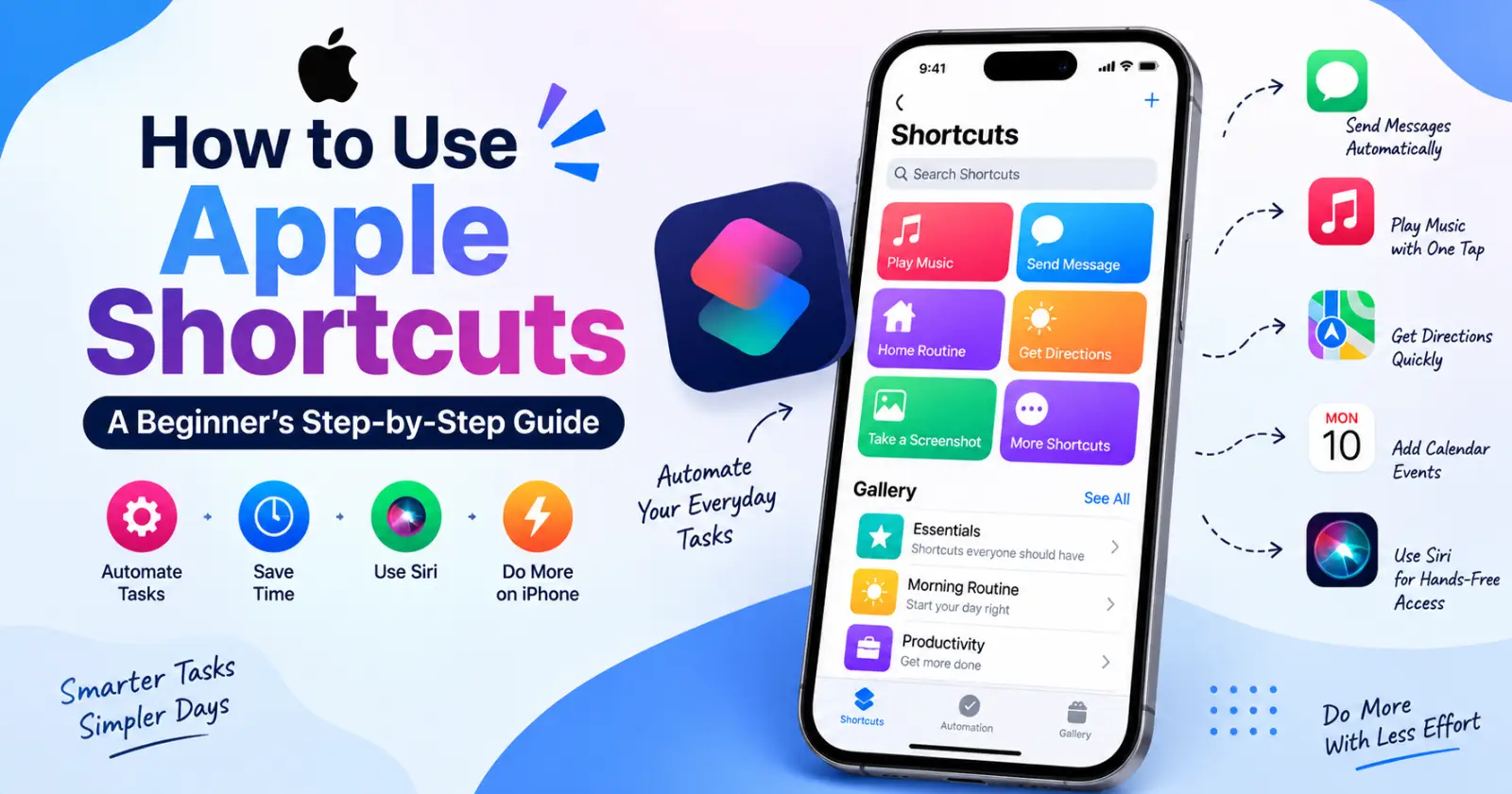
Tired of going through the same taps and tasks again and again on your iPhone? Use a shortcut to automate your tasks with a few taps. With shortcut features, you can easily handle daily tasks, get directions, and adjust settings with Siri.
Whether you are a beginner or curious to know how to use Apple Shortcuts for smooth access, this blog will help you. Dive into the blog to understand the use of Apple Shortcuts and get step-by-step beginner guidance for better accessibility.
What are Apple Shortcuts?
For every Apple user, shortcuts help to turn repeating tasks into a single-tap action. It combines actions from Apple apps and supporting third-party apps into a single workflow.
It conveys all the manual work, like checking the weather, opening the calendar, and playing music, each morning with one shortcut to perform it. As it maintains all tasks in specific orders, users can carry on these tasks while it automates them on time.
Users can set a manual shortcut through Siri and set a home screen icon with a widget. They can use automated shortcut features on iPhone, iPad, and Mac for similar tasks.
Find And Open The Shortcuts App
Shortcut apps help to minimize your surfing time finding and repeating tasks on apps. On compatible Apple devices, the Shortcuts app is already installed. iPhone users can use Spotlight Search or download it from the App Store. Here are the simple steps to find the Shortcut app
- Open the Home Screen
- Search for “Shortcut” on the dashboard.
- Tap the Shortcut app icon.
- Click to add the tasks and apps for easy access.
If the app is missing on the dashboard, users can go to the App Store and search for Shortcuts. After installing, you can open the app and find the Automation tab, add or create shortcuts, and use the Gallery.
The Automation tab can be used to handle event-based tasks such as running something at a specific time or connecting a Bluetooth device to your device. The Gallery holds an Apple collection of ready-made shortcut ideas.
Explore the Gallery
In the Shortcut app, using the Gallery is one of the effective features for beginners. It allows them to add prebuilt shortcuts so that they don’t repeat tasks.
- Open the Shortcut app.
- Tap Gallery
- Browse categories like Essentials, Morning Routine, Share Sheets, and Productivity.
- Tap the shortcut app that you need.
- Review the added shortcut tasks and add them to your Gallery.
During the setup, the Shortcut app asks for several pieces of information to store and automates the tasks. Follow the added prompts carefully and test the shortcuts for smooth usage. You can visit the shortcut at any time and edit the options.
Understand Tasks
To handle your day-to-day tasks, you can set tasks in shortcut apps on your iPhone for easy handling. It helps beginners understand how to use Apple Shortcuts and set what to do for tasks.
It can handle tasks like –
- Opening apps
- Send a message
- Get a current condition
- Create a calendar event
- Set an alarm
- Play music
- Get directions
- Take a screenshot
- Convert a file
- Save notes
With the simple keywords in the Shortcuts App search box, users can set tasks and locate the right action quickly.
Create a Shortcut
With the simple guidance, you can send a prepared message or notes to a selected contact in the Shortcuts app. Here is how you add tasks in Shortcuts.
- Open shortcut tab
- Tap the Add button in the top corner.
- Tap the shortcut name and choose Rename
- Avoid giving a clingy name and give a clear name for easy access.
- Tap Add action
- Search for “Send message” to add it.
- Enter the name
- Tap the relevant app and select contacts.
- Tap Done to save it.
Depending on the action or message you set up in the settings, the Shortcuts app in Apple will Automate The task on time. You can activate Siri to run the shortcut daily and balance your workflow with your iPhone.
Multiple Actions In Shortcuts
The shortcut app features multiple task-handling capacities and timely updates to sleek actions. For example, you can create a Work Start shortcut, turn on focus mode, and display your calendar at a time without any disturbance.
Here are the simple steps on how to use Apple Shortcuts for multiple actions
- Create a new shortcut and name it
- Tap the Add Action icon.
- Search for “Set Focus” and add the mode you want
- Add your action message to the mode.
- Search and open the app you want to work with.
- Add another action like calendar events.
- Drag the actions that you like and change the order
- Tap Done and save the shortcuts.
By following these steps, you can easily access multiple shortcut actions without any interaction. Users can add repetitive tasks and variables in the shortcut to maintain a smooth workday.
Run Shortcuts In Different Ways
You can run Shortcuts in several ways to avoid opening apps every time.
➤ Use Siri
You can use Siri, a built-in virtual assistant on the iPhone, to identify and run the shortcut actions. You can name it by saying, “Hey Siri,” and it will run it for you.
➤ Add Home Screen Icon
- Open the shortcut’s menu
- Click the Details or Information button.
- Choose Add to Home Screen
- Edit the name so that Siri can access it
- Tap Add for flexible access.
➤ Add Widget
For easy Shortcut app access, you can add a widget to your Home screen to display. It helps you run certain shortcuts from the share sheet and handle actions like resizing images, saving webpages, and converting documents.
➤ Create Personal Automation
You can customize shortcuts to automate your tasks at any time in the Shortcuts app. It can be triggered by time of day, arrival location, opening an app, or connecting Bluetooth devices.
To create a personal automation shortcut, you need to
- Open the Shortcuts App
- Tap automation
- Click add button
- Inside that, tap “Create Personal Automation.”
- Choose the Triggers and set action Details.
- Tap “add action” and fulfill your needs
- Tap “Done” for smooth Shortcut access.
Final Takeaway
Though understanding the shortcut app on iPhone seems overwhelming for beginners, with the proper guidance of the blog, they can break through its features and add actions and daily routine tasks for easy handling.
If you are planning to build a new shortcut on your device or want to add multiple actions/tasks in Shortcuts, use these methods to turn on data permissions and ensure smooth functionality. With these steps, you can use iPhone Shortcuts to save time and turn your routine into a simple one-tap workflow.
Read Also – How To Delete Apps On iPhone
